BOSS Gigcaster5
-
I’m trying to use a Boss Gigcaster5. The audio for the other person in the FarPlay session is a little quiet. I’ve tried adjusting the levels in the mixer with some success but still wasn’t satisfied so I tried a few different audio drivers. The generic Steinberg ASIO driver seems to sound the best out of the ones I tried. When I try the audio driver that comes with the mixer, GCS5, the Boss GCS5 ASIO driver seems to be noisy/etc? The levels are higher and easier to mix but it does seem to be noisy. Any thoughts?

-
I guess I should have said I’m running Windows (latest build). I’m also trying to use the GCS Driver with the GCS-Main output for the mic in the Farplay app from the mixer in the driver section and use the GCS-Mon choice for the Headphones. As I said, if I just choose a different driver on my PC, ASIO Steinberg (I’m a Cubase guy), the quality is better but just very quiet in the mix. Lmk if I can share anything else
Dear Bill,
Thanks for your question.
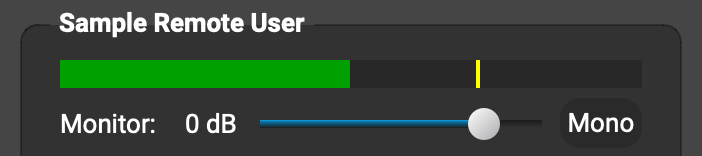
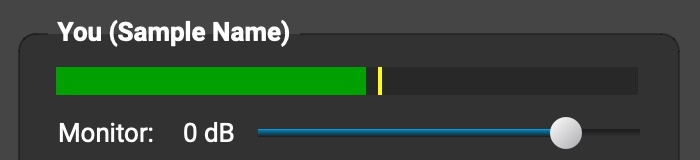
To troubleshoot volume, look at the level meter under the remote musician’s name. Does the meter flicker a lot (green, yellow, and maybe even orange) when they play? If you see a low meter level from them, ask them to increase their mic gain. If you see a strong meter level when they play, but they sound quiet in your headphones, drag the monitor slider under their name toward the right.

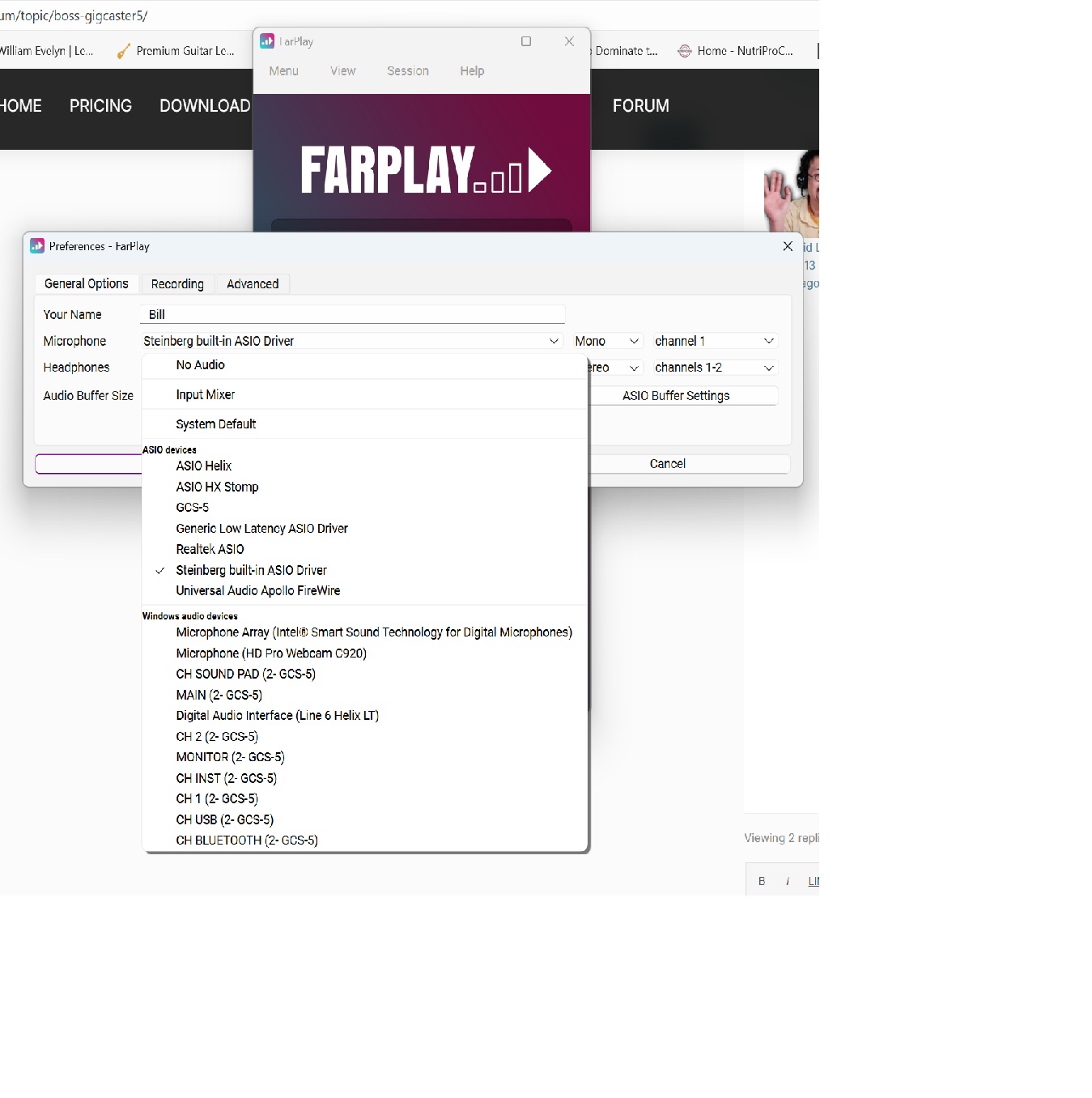
To troubleshoot the audio quality of the GCS ASIO drivers, could you go to FarPlay’s Preferences > General Options, select the GCS ASIO drivers for the Microphone and Headphones, and then share a screenshot of the Preferences window? Could you also share a screenshot of the choices in the microphone pull-down menu and a screenshot of the choices in the headphones pull-down menu?
I’d like to double-check that the Microphone and Headphones selections are in the “ASIO devices” sections of the pull-down menus. If so, click ASIO Buffer Settings.
If a control panel for the GCS drivers appears, use this panel to increase the GCS’s ASIO buffer size (say, from 32 to 64 samples). If clicking ASIO Buffer Settings doesn’t do anything, look in the Windows System Tray (near the date and time at the bottom-right corner of the screen). If you find an icon for the GCS driver, click it and raise the GCS ASIO driver’s buffer size. If the GCS driver’s buffer size can’t be set in either of these ways, could you let us know? (I looked in the Gigcaster 5’s manual, but couldn’t find instructions for the ASIO buffer settings).Thank you,
David Liao-
This reply was modified 2 months, 1 week ago by
 David Liao.
-
This reply was modified 2 months, 1 week ago by
David Liao.
I’ve been doing a little research as well. When I Google it, it turns out that the Boss Gigcaster driver is not an ASIO driver (although it shows up on the list in Farplay). When I try to use the Boss driver, there is a lot of noise in Farplay. I’m assuming that’s because its not ASIO. I switched to the Steinberg driver and it works without noise but it sounds quiet and seems to have some limitations like I lose the choices of which channels to send to FarPlay which I want in order to get a better mix. When I ask Google about it, apparently the Steinberg driver will use the GCS Windows driver and maybe that’s where the volume issue comes in? If this is too complicated, maybe suggest a mixer that I could use or one that you’ve seen have some success? Thanks …
Attachments:
Dear Bill,
Thank you for the super helpful screenshot. Please try the following.
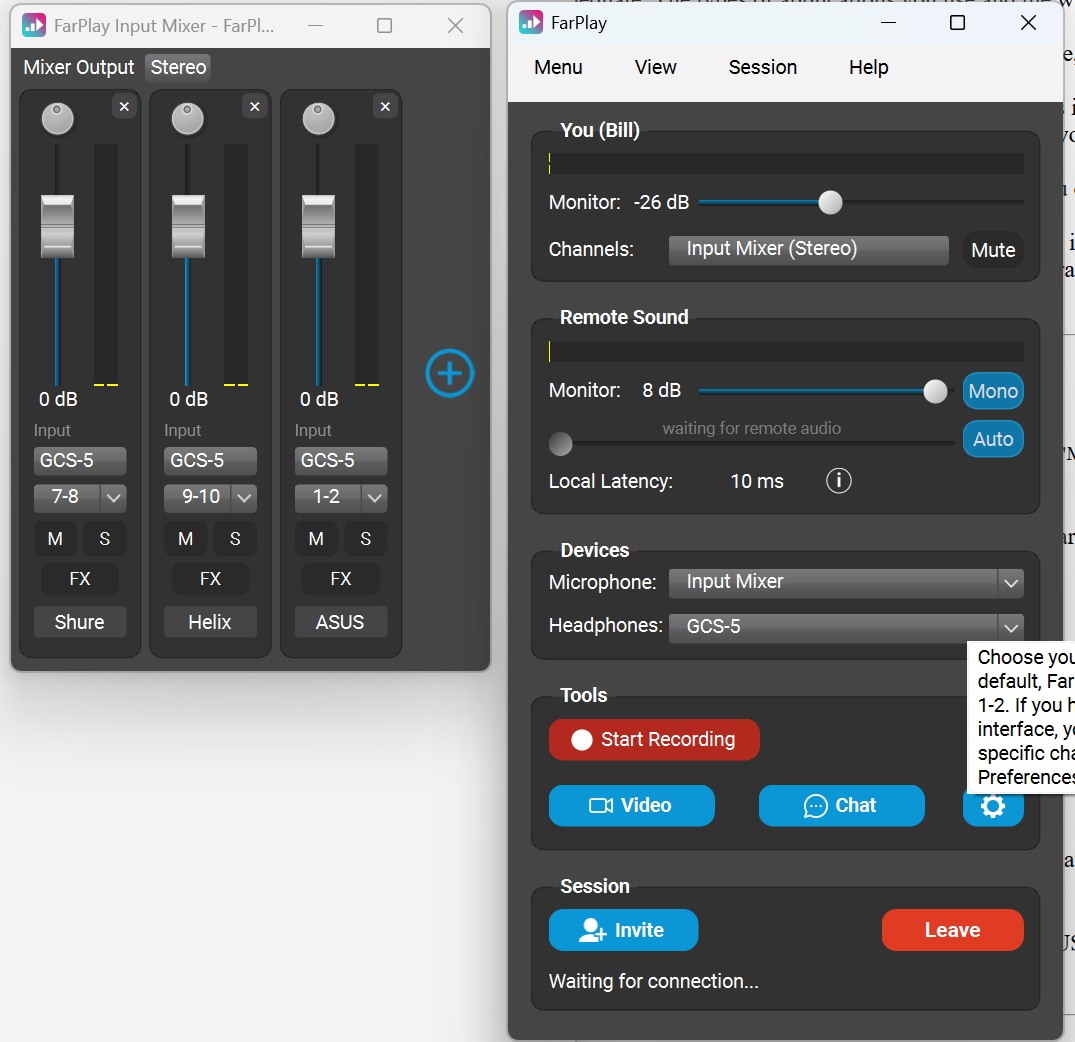
- In FarPlay’s Preferences > General Options, set Microphone to Input Mixer.
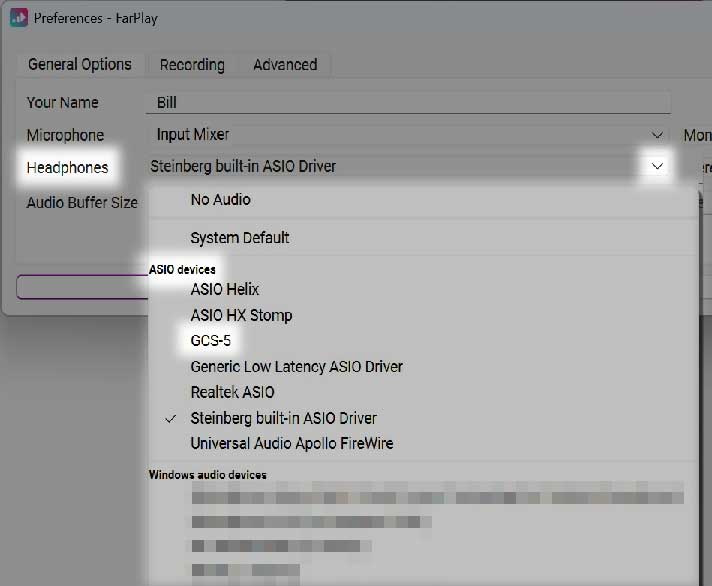
Set Headphones to ASIO devices > GCS-5. Don’t select an option in the Windows audio devices section; those aren’t ASIO drivers.
-
Press the ASIO Buffer Settings button. If a control panel appears, set the ASIO buffer size to 32 samples and the sample rate to 48000 Hz.
-
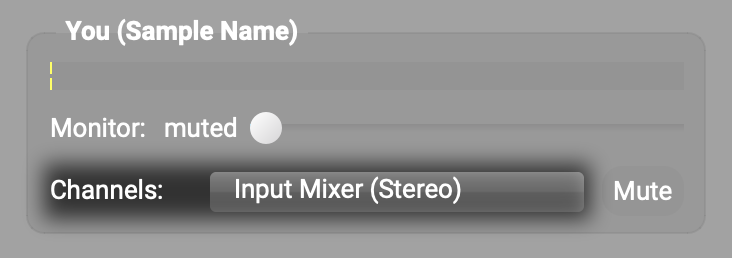
Open a FarPlay session (could be just by yourself). In the You (…) subpanel, click the Input Mixer button.
-
In the Input Mixer window that opens, press the circled plus to create as many input tracks as you’d like — each track in the Input Mixer can accept 1 (mono) or 2 (stereo) input channels from your Gigcaster-5. For each track, click the device menu (under “Input”) and select ASIO devices > GCS-5. Use the pull-down menu under the device menu to choose the input channels you want to use. Here’s what the input-device and input-channel selections look like in a track when I use my Focusrite Scarlett interface.
- Adjust the mix you’re sending using the mixer’s gain sliders and pan pots (knobs), as described in our mixer instructions.
-
To monitor the mix you’re sending through FarPlay, drag the Monitor slider in the You (…) subpanel to 0 dB (higher if you prefer the mix you’re sending to be louder in your headphones).
- If you’d prefer to try a different audio interface/mixer (maybe using the ASIO devices > GCS-5 drivers as suggested above still give poor audio quality, for example), see whether the similarly priced Focusrite Scarlett 8i6 has the inputs you need. You’d simply install the Scarlett’s ASIO drivers and do the steps above (replacing ASIO devices > GCS-5 with ASIO devices > Focusrite USB ASIO). I haven’t used my 8i6 with a PC (I mainly use a Mac), but Focusrite makes high-quality ASIO drivers (I had a great experience with another Scarlett on my PC before I switched to my Mac), and my 8i6 and FarPlay’s input mixer let me mix two mics, stereo input from a digital piano, and stereo line inputs for backing tracks — convenient and pleasant!
Thank you,
David Liao-
This reply was modified 2 months, 1 week ago by
David Liao.
-
This reply was modified 2 months, 1 week ago by
David Liao.
-
This reply was modified 2 months, 1 week ago by
David Liao.
-
This reply was modified 2 months, 1 week ago by
David Liao.
-
This reply was modified 2 months, 1 week ago by
David Liao.
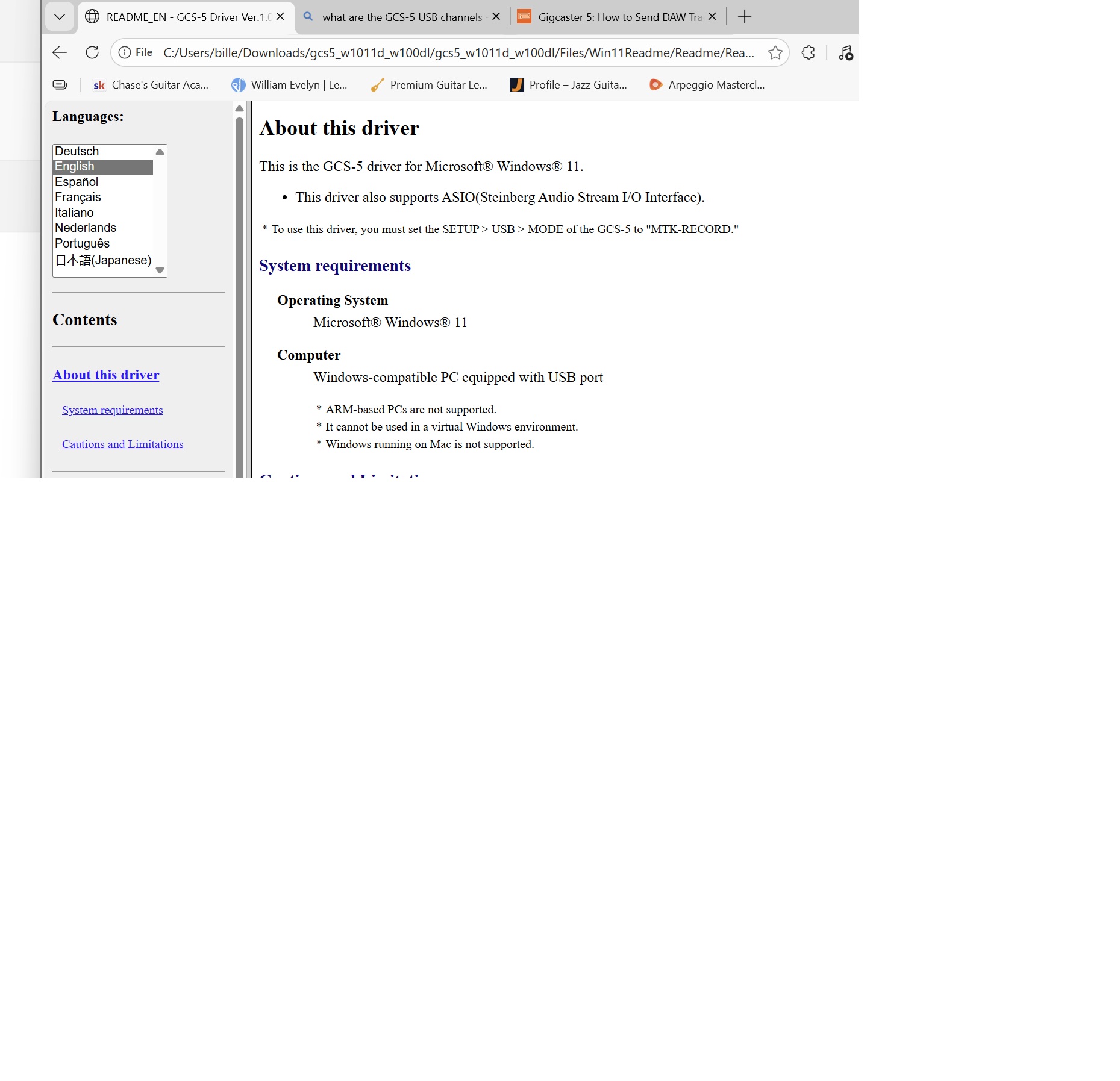
Good day … just a quick little note to say thanks and to maybe leave a couple of graphics that may be helpful if anyone else out there is running a GCS-5 or 8. It turns out that the GCS-5 Driver is actually ASIO compatible (see the jpeg). I also took a snapshot of my config after I ran the mixer setup as you suggested and all seems to be well ;). I’ve still got to test with a couple of friends online but I’m reasonably optimistic now. Thanks for all your help
Attachments:
Dear Bill,
You’re welcome. Glad to hear the mixer setup was helpful. Many thanks for sharing the screenshots!
Thank you,
David Liao -
This reply was modified 2 months, 1 week ago by



 > General Options, set Microphone to Input Mixer.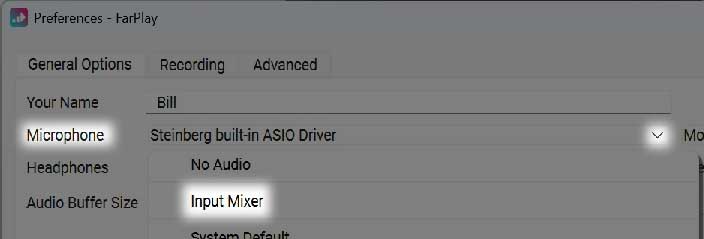

 to create as many input tracks as you’d like — each track in the Input Mixer can accept 1 (mono) or 2 (stereo) input channels from your Gigcaster-5. For each track, click the device menu (under “Input”) and select ASIO devices > GCS-5. Use the pull-down menu under the device menu to choose the input channels you want to use. Here’s what the input-device and input-channel selections look like in a track when I use my Focusrite Scarlett interface.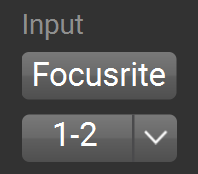
- You must be logged in to reply to this topic.