Can’t hear myself in headphones once I join a session
-
I have a Blue Yeti mic, which is plugged directly into my computer. I have headphones plugged into the mic. When I am not on Farplay, I can hear myself through the mic to my headphones. But, as soon as I join a session on Farplay, I can’t hear myself sing in my headphones. I have ensured that I can “Listen to this Device.” As I’m typing here (outside of Farplay) I can hear every click of the keyboard through the mic. But, as I said, joining Farplay I can hear nothing. I am able to hear the person on the other end of the connection. Thanks for any guidance you can give me!!!!

-
Dear Jennifer,
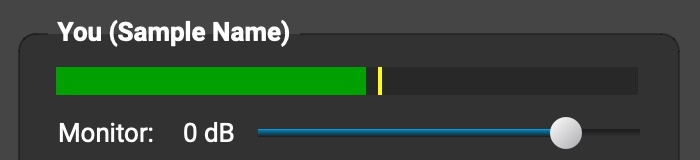
Thanks for your post. On FarPlay’s welcome screen, please click New Session > Create a one-time session to start a session (can be just by yourself without anyone else). Speak into your mic. At the same time, in the subpanel for You (…), gradually drag the Monitor slider to the right to increase the volume of your voice in your headphones.

Interested to know whether this works for you.Thank you,
David Liao-
This reply was modified 2 months, 4 weeks ago by
 David Liao.
-
This reply was modified 2 months, 4 weeks ago by
David Liao.
-
This reply was modified 2 months, 4 weeks ago by
David Liao.
-
This reply was modified 2 months, 4 weeks ago by
David Liao.
I think I found some information that says Farplay doesn’t really allow for monitoring without an interface. So, I’m ordering a Scarlett Solo and I’m going to try that with the Audio-Technica AT2020 XLR mic. Is that a good solution?
Dear Jennifer,
The Focusrite Scarlett Solo and Audio-Technica AT2020 XLR mic you suggested are indeed together a fantastic solution (noticeably better audio quality and less latency than with a Yeti on a PC). For your PC, set this equipment up with the version of our QuickStart guide customized for Windows PCs with external audio interfaces.
Note: FarPlay does allow musicians to monitor themselves without a separate audio interface (by dragging the Monitor slider in the You (…) subpanel shown in the screenshot above toward the right). Yeti users may also be able to turn on built-in monitoring on their Yetis by press-holding a button on the back of the mic as indicated on reddit here and here. If you could share where it says that FarPlay doesn’t really allow for monitoring sound with an interface, we’d be grateful to know so we can make corrections.
Thank you,
David Liao-
This reply was modified 2 months, 4 weeks ago by
David Liao.
-
This reply was modified 2 months, 4 weeks ago by
David Liao.
Thank you for the response! It was a ChatGPT answer, so probably not reliable. I’ve spent weeks trying to use Farplay with several headphone/mic solutions. I decided not to go with the Scarlett. Instead, my voice teacher said many of her students simply use Apple Earbuds with built in mic. So, I bought those with 3.5mm. Tried that today plugged into my computer’s headphone jack, so they show up as Realtek in Sound and in Farplay. Alas, my voice teacher said she heard an echo and I could only hear her in my right earbud – it worked enough for the lesson. So, I went back to ChatGPT and asked about the headphone jack and the issues I was having and it agreed that there is an issue with HP/Realtek and using an app like Farplay. So, I am going to try the earbuds with a USB-C connection. GPT said it would work much better, and that the computer will recognize the headphones and the mic seperately so I can select those in Sound and in Farplay. BTW – my BlueYeti has a dial with patterns on the back that you cannot push and a Gain dial. IDK. I think I’m giving up on that mic.
Dear Jennifer,
Thank you for the update and the description of the back of your Yeti.
Yes, sadly, I’ve found ChatGPT unreliable for tech support for FarPlay. It’s faster and easier to get set up with our QuickStart Guide and then, if needed, our Troubleshooting Guide and this forum. If you’d like, you can sign up for FarPlay’s monthly support sessions. Support sessions are free to subscribers and students of teachers who have the “For Teachers” subscription.
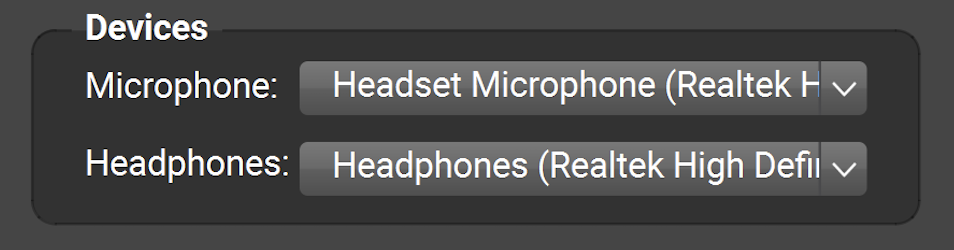
Even if your earbuds with USB-C plug haven’t arrived, you can try to get rid of the echo your teacher hears by clicking on the Microphone pull-down menu in the Devices subpanel (below) and choosing “Microphone Array”, if available (if your PC has a built-in mic called something other than “Microphone Array”, pick that instead).
Plugging earbuds with included mic into the 3.5-mm jack on a computer typically works great (including when the earbuds and mic both show up as “Realtek”, as they often do on PCs). In occasional cases, (I think this might have happened to you), the signal from the earbuds portion of a headset can leak into the microphone portion (electrical-connection issue), causing the remote musician to hear an echo. Switching from the mic of the earbuds to a PC’s built-in mic solves this problem (switching to earbuds with USB plug like you suggested can work too).Though ChatGPT commented that the computer would “recognize the headphones and the mic separately” for earbuds with USB-C plug, USB earbuds might still show up with the same or similar names in FarPlay’s Microphone and Headphones lists (like how the earbuds and mic with 3.5-mm plug showed up as “Realtek” in both lists), and this is perfectly fine 👍.
To hear your teacher in both ears (not just your right ear), go to Preferences
> General Options. In the Headphones row, make sure “Stereo” (not “Mono”) and “channels 1-2” are selected.
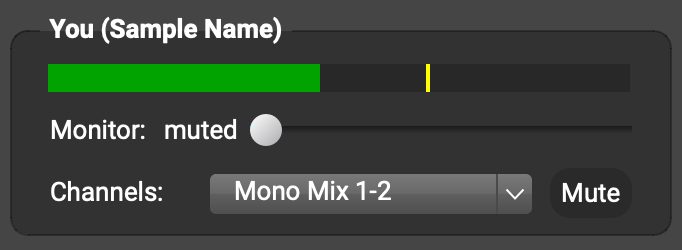
If you still hear your teacher only through your right ear, ask your teacher to use the Channels: pull-down menu under You (…) to select Mono Mix.
Thank you,
David Liao-
This reply was modified 2 months, 3 weeks ago by
David Liao.
-
This reply was modified 2 months, 3 weeks ago by
David Liao.
-
This reply was modified 2 months, 3 weeks ago by
David Liao.
-
This reply was modified 2 months, 3 weeks ago by
David Liao.
-
This reply was modified 2 months, 3 weeks ago by
David Liao.
-
This reply was modified 2 months, 3 weeks ago by
David Liao.
-
This reply was modified 2 months, 3 weeks ago by
David Liao.
OK. The USB-C Earbuds worked ok. She could hear me, she sounded fine in both of my earbuds. But, she hears an echo. Any advice? I’m wondering if my mic picks up sound from the not well fitting earbuds. I am also insterested in trying my Yeti Mic (USC-A) to my computer and my Bose Quietcomfort Headphones (USB-C) with noise cancelling. Would that help? Seems like I try a bunch of things with my son on the other side of FarPlay and it works, but it won’t work with my voice teacher. I can’t join the trouble shooting session on Saturday. So, any feedback here would be great.
Dear Jennifer,
I’m happy we were able to get high-quality, echo-free audio in a test call just now with your Bose Quietcomfort headphones (plugged in through USB-C) selected as your headphones and your USB-C EarPods selected as your mic.
Selecting different devices for the microphone and headphones, like we did, prevents an echo that can occasionally happen when using an all-in-one earbuds-and-mic headset.
Thank you,
David Liao-
This reply was modified 2 months, 2 weeks ago by
David Liao.
-
This reply was modified 2 months, 4 weeks ago by


 > General Options. In the Headphones row, make sure “Stereo” (not “Mono”) and “channels 1-2” are selected.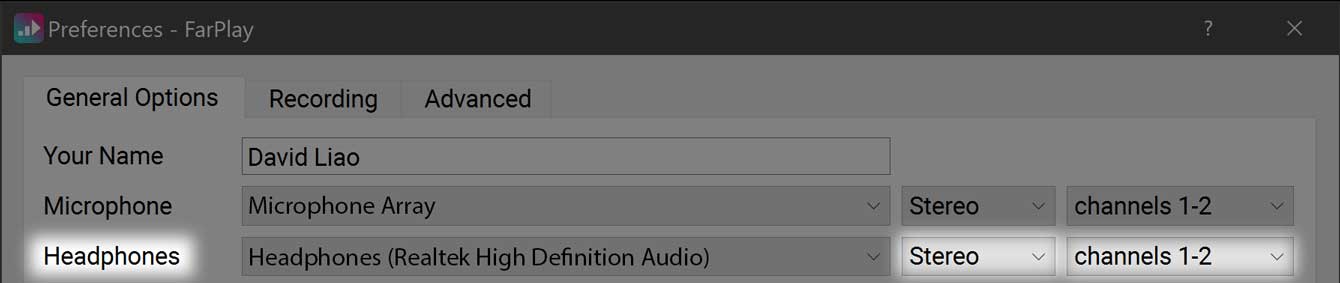
- You must be logged in to reply to this topic.