Hi Chess,
Thank you for your message. First, have you been able to do a test call using your Mac Mini and a simple set of wired headphones (like the wired Apple EarPods) (see instructions)? That basic setup is good for troubleshooting things before setting up an advanced mixer, like your L-20.
Thank you,
David Liao
-
This reply was modified 2 months ago by
 David Liao.
Dear Chess,
It was so nice to meet you, and I’m glad we were able to get your L-20 and FarPlay set up! Here are steps to help other users using the same L-20 mixer:
Prepare your L-20
- Download and install your L-20’s drivers.
- Plug your mics, instruments, and headphones into your L-20.
- Look on the back of your L-20. Set the Power switch to Off.
- Plug your L-20’s USB cable into the L-20’s Device port (not the host port) and into your computer.
- Set the Mode switch to Audio Interface.
- Set the Class Compliant Mode switch to On.
- Set the Sample Rate switch to 48 kHz (using 44.1 kHz for compatibility with other software is fine, but 48 kHz is preferred).
- Set the Power switch to On.
- In the 17/18 strip, make sure the USB 1-2 button is illuminated.
Configure FarPlay to use your L-20
- Open a FarPlay session (just by yourself is fine).
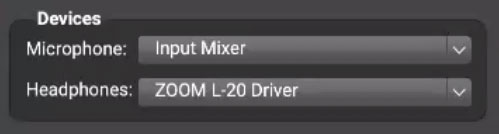
- In FarPlay’s Devices subpanel, set Headphones to the ZOOM L-20 Driver and set Microphone to the Input Mixer.

- In the Input Mixer window that opens, press the circled plus to create as many input tracks as you’d like — each track in the Input Mixer can accept 1 (mono) or 2 (stereo) input channels from your L-20.
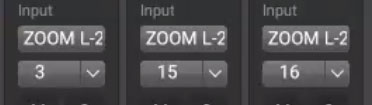
- For each track, click the device menu (under “Input”) and select the ZOOM L-20 Driver (Windows users should choose the L-20’s listing from the ASIO devices section). Use the pull-down menu under the device menu to choose the input channels you want to use. For example, here’s what the input-device and input-channel settings look like when using a mic plugged into the L-20’s input channel 3 and a digital piano plugged into channels 15 and 16.
-
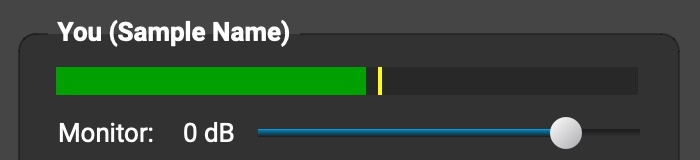
To hear in your headphones the mix you’re sending to remote musicians through FarPlay, drag the Monitor slider in the You (…) subpanel to 0 dB.
-
Adjust the mix you’re sending using the mixer’s gain sliders and pan pots (knobs), as described in our mixer instructions.
Troubleshooting
If the steps above don’t let you your computer use your L-20 (or cause your L-20’s internal latency to feel high), quit audio apps, turn your L-20 off, set the Class Compliant Mode switch to Off, turn your L-20 back on, and try setting FarPlay up to use your L-20 again.
Thank you,
David Liao
-
This reply was modified 1 month, 3 weeks ago by
David Liao.
-
This reply was modified 1 month, 3 weeks ago by
David Liao.