Headphones

  • Hi Genís,

    Thanks for your question. To get your student to hear you, please have him try these steps on his computer:

    1. If his headphones connect through an extension cable, unplug the cable and plug the headphones straight into his laptop.
    2. With his headphones plugged into his laptop, click Start > Settings > System > Sound. Click More Sound Settings because his PC uses Windows 11 (Windows 10 users would click Sound Control Panel). Go to the Playback tab of the Sound Control Panel.
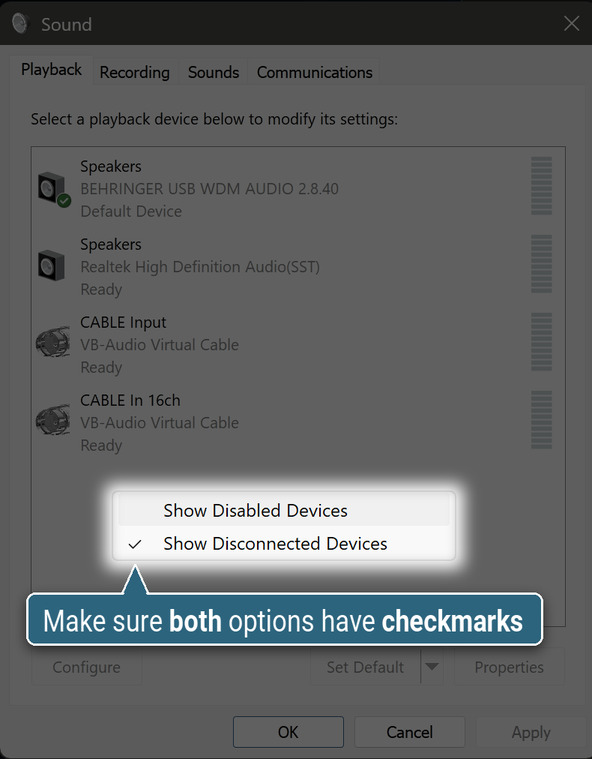
      Right-click an empty area of the list. If Show Disabled Devices has no checkmark next to it, click it. Right-click the empty area again, and if Show Disconnected Devices has no checkmark, click it:
      The Playback tab's right-click menu with Show Disabled Devices and Show Disconnected Devices, and a caption: Make sure both options have checkmarks
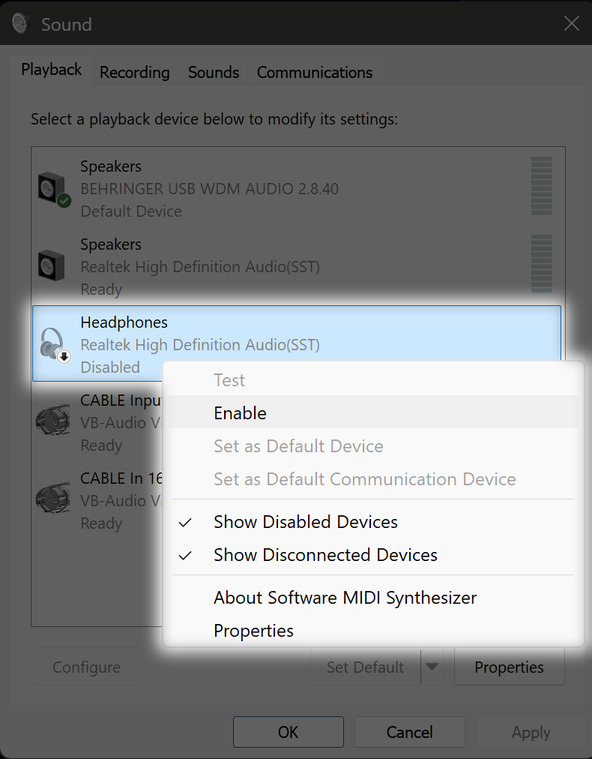
      If his headphones now appear in the list, greyed out with Disabled under their name, right-click them and click Enable:
      Disabled headphones in the Playback tab with Enable in the right-click menu
      If his headphones don’t appear in the list, send a screenshot of the Playback tab and a photo showing where his headphones plug into his laptop, and stop here. Otherwise, continue to step 3.
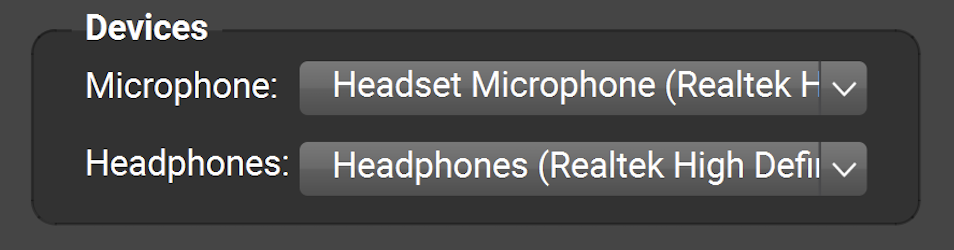
    3. Join a session with him. In FarPlay’s Devices subpanel, have him use the Headphones pull-down menu to pick his headphones. This may currently say No Audio. On a laptop with Realtek audio it can look like this:
      FarPlay's Devices subpanel with Headphones set to Headphones (Realtek High Definition Audio)
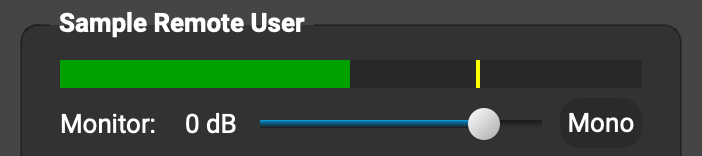
      Talk to him. On his screen, the meter in your subpanel should move when you talk, like this:
      A remote participant's subpanel with a green level meter and the Monitor slider
      Under your name in his FarPlay window, ask him to drag the Monitor slider to the right to increase the volume of your sound in his headphones. If he still can’t hear you, ask him to take a screenshot of his whole FarPlay window while you are both connected, and post it here or email it to support@farplay.io.

    Thank you,
    David Liao

    • This reply was modified 1 day, 14 hours ago by David Liao.
    • This reply was modified 1 day, 13 hours ago by David Liao.
Viewing 1 replies (of 1 total)
  • You must be logged in to reply to this topic.