Reply To: BOSS Gigcaster5

Dear Bill,
Thank you for the super helpful screenshot. Please try the following.
- In FarPlay’s Preferences
 > General Options, set Microphone to Input Mixer.
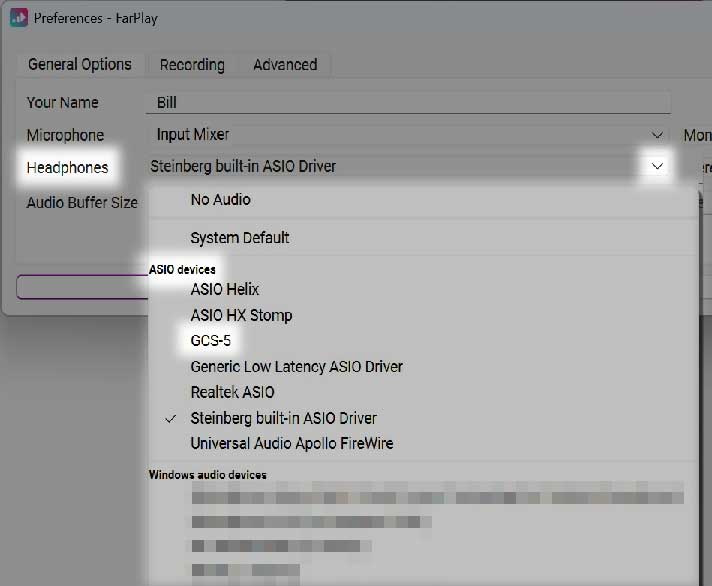
Set Headphones to ASIO devices > GCS-5. Don’t select an option in the Windows audio devices section; those aren’t ASIO drivers.
-
Press the ASIO Buffer Settings button. If a control panel appears, set the ASIO buffer size to 32 samples and the sample rate to 48000 Hz.
-
Open a FarPlay session (could be just by yourself). In the You (…) subpanel, click the Input Mixer button.
-
In the Input Mixer window that opens, press the circled plus to create as many input tracks as you’d like — each track in the Input Mixer can accept 1 (mono) or 2 (stereo) input channels from your Gigcaster-5. For each track, click the device menu (under “Input”) and select ASIO devices > GCS-5. Use the pull-down menu under the device menu to choose the input channels you want to use. Here’s what the input-device and input-channel selections look like in a track when I use my Focusrite Scarlett interface.
- Adjust the mix you’re sending using the mixer’s gain sliders and pan pots (knobs), as described in our mixer instructions.
-
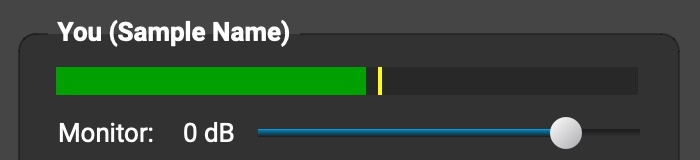
To monitor the mix you’re sending through FarPlay, drag the Monitor slider in the You (…) subpanel to 0 dB (higher if you prefer the mix you’re sending to be louder in your headphones).
- If you’d prefer to try a different audio interface/mixer (maybe using the ASIO devices > GCS-5 drivers as suggested above still give poor audio quality, for example), see whether the similarly priced Focusrite Scarlett 8i6 has the inputs you need. You’d simply install the Scarlett’s ASIO drivers and do the steps above (replacing ASIO devices > GCS-5 with ASIO devices > Focusrite USB ASIO). I haven’t used my 8i6 with a PC (I mainly use a Mac), but Focusrite makes high-quality ASIO drivers (I had a great experience with another Scarlett on my PC before I switched to my Mac), and my 8i6 and FarPlay’s input mixer let me mix two mics, stereo input from a digital piano, and stereo line inputs for backing tracks — convenient and pleasant!
 > General Options, set Microphone to Input Mixer.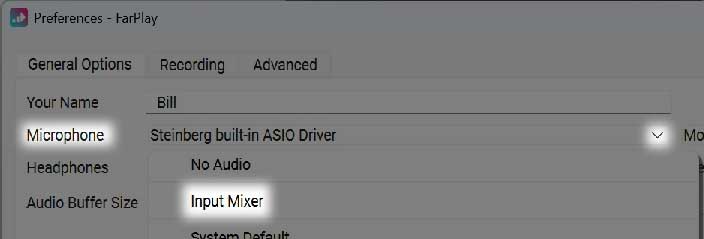

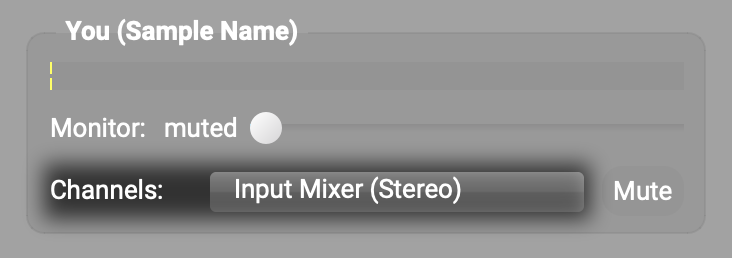
 to create as many input tracks as you’d like — each track in the Input Mixer can accept 1 (mono) or 2 (stereo) input channels from your Gigcaster-5. For each track, click the device menu (under “Input”) and select ASIO devices > GCS-5. Use the pull-down menu under the device menu to choose the input channels you want to use. Here’s what the input-device and input-channel selections look like in a track when I use my Focusrite Scarlett interface.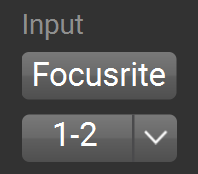
Thank you,
David Liao
-
This reply was modified 8 months, 4 weeks ago by
 David Liao.
-
This reply was modified 8 months, 4 weeks ago by
David Liao.
-
This reply was modified 8 months, 4 weeks ago by
David Liao.
-
This reply was modified 8 months, 4 weeks ago by
David Liao.
-
This reply was modified 8 months, 4 weeks ago by
David Liao.
