High latency in Fedora 43
-
Hello everyone!
I’ve used FarPlay with a Mac before and it’s always worked well.
Now I’m using Fedora Workstation 43, and the delay is very high. The delay is always more than 80 milliseconds (more than 100 in the attached picture).
I’ve set the buffer size to the smallest setting, but the changes are small.
Everything is updated as far as the operating system is concerned.
This happens when using the external mic and also when using Komplete Audio interface.I followed the instructions in the “Getting Started” section. I couldn’t find anything for Linux, so I used the Windows section as a guide.
Is there anything else I need to do?
Attachments:

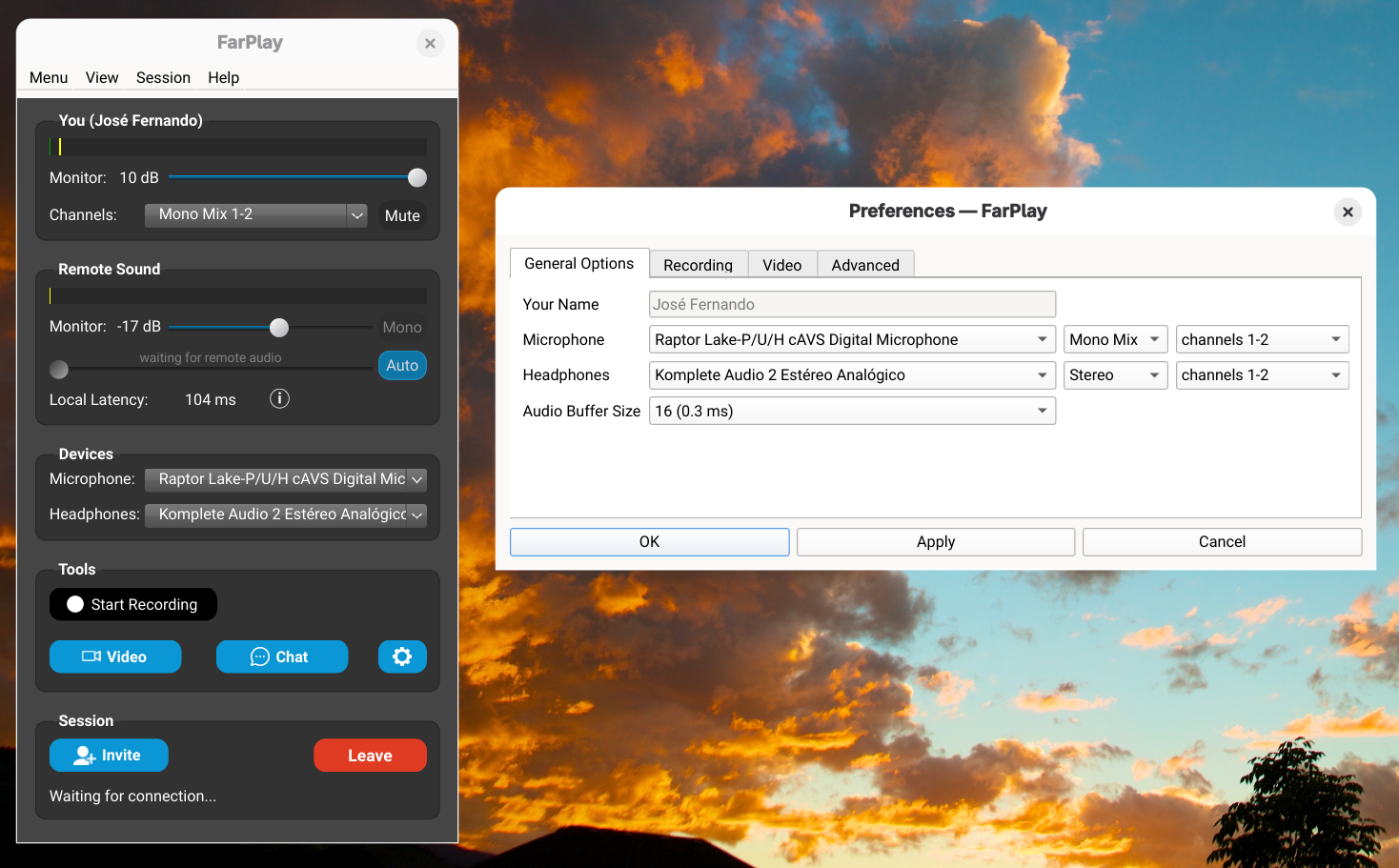
-
Dear José,
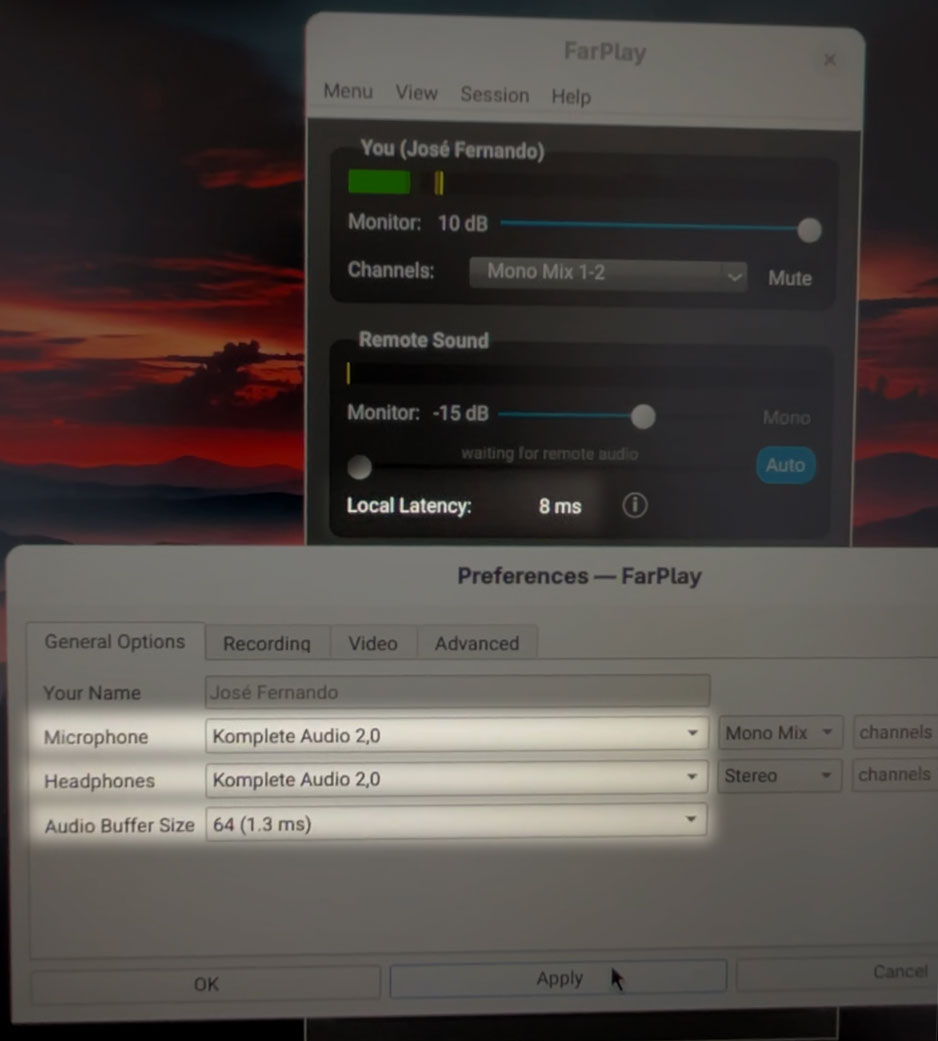
Edit ⚠️: The solution (details below) was to quit all audio apps, open FarPlay, set the Microphone and Headphones in Preferences to ALSA devices > Komplete Audio 2,0 and raise the Audio Buffer Size to 64.
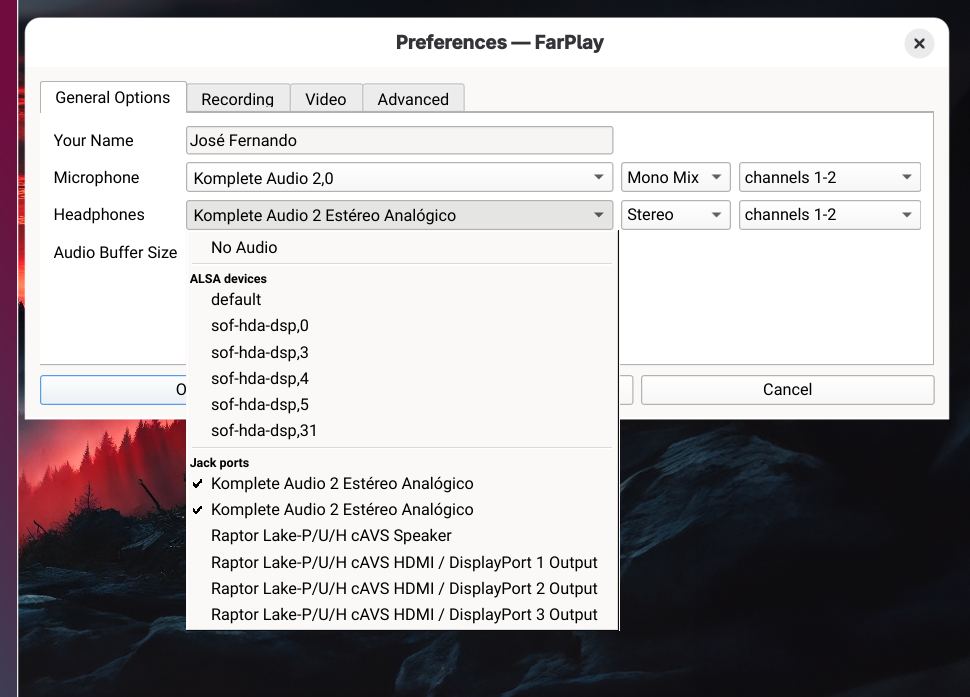
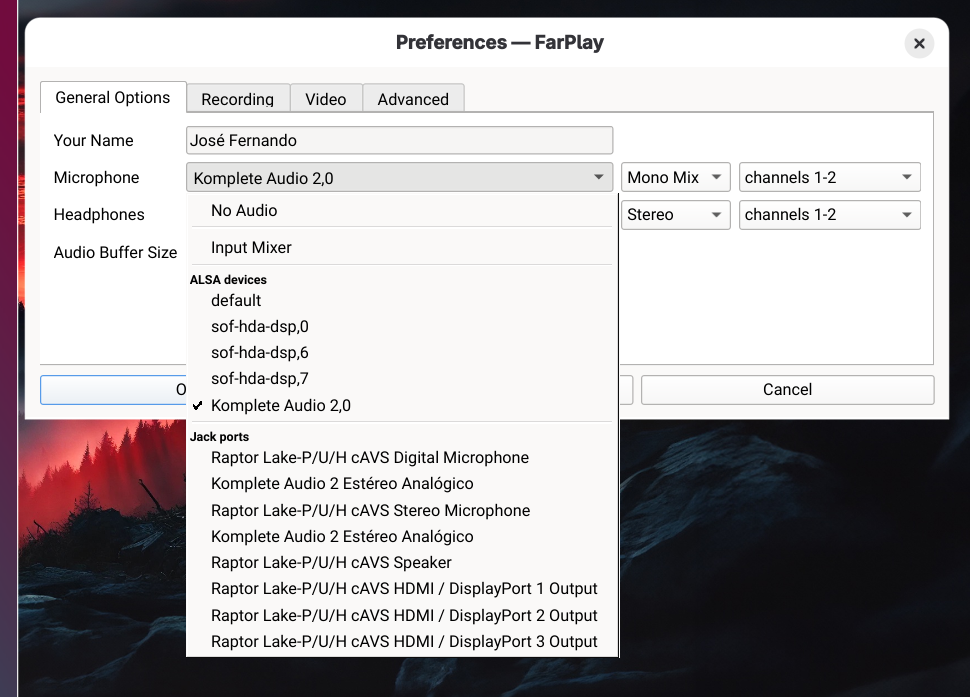
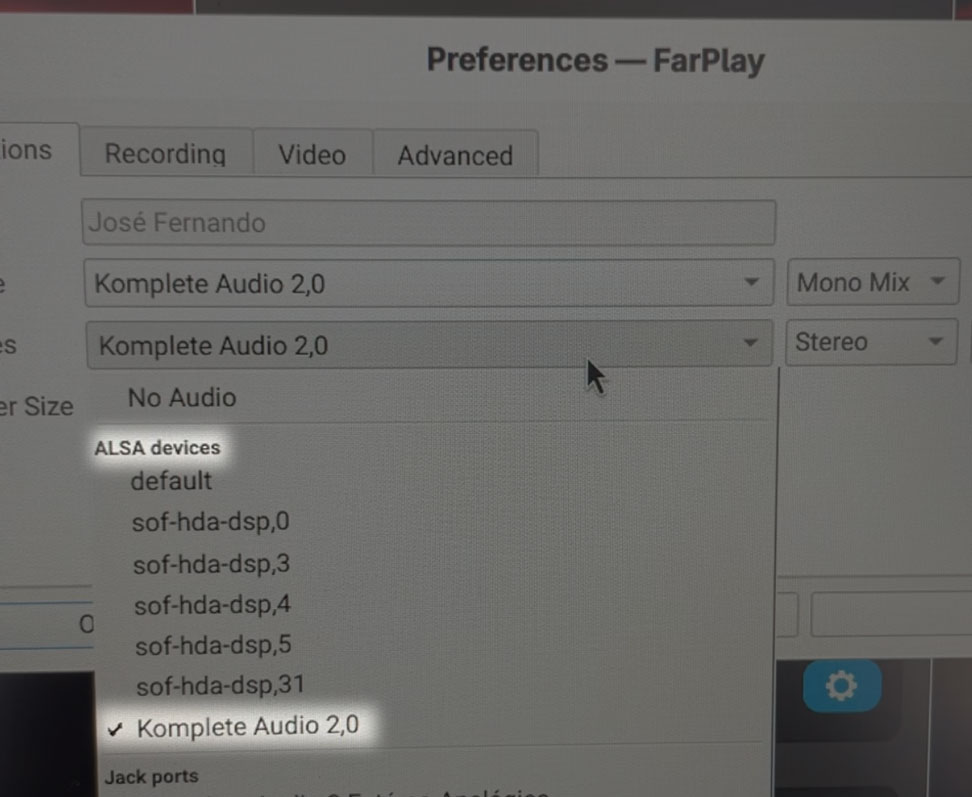
Thanks for your screenshot. In that Preferences > General Options page, please click the Microphone pull-down menu and choose the listing for your Komplete Audio interface in the ALSA devices sublist. Do the same for the Headphones pull-down menu.
Could you let us know whether the suggestions above reduce the local latency? If the local latency remains high, could you share screenshots of the options in the microphone pull-down menu and the options in the headphones pull-down menu?
Thank you,
David Liao-
This reply was modified 6 months, 1 week ago by
 David Liao.
-
This reply was modified 6 months, 1 week ago by
David Liao.
-
This reply was modified 5 months, 3 weeks ago by
David Liao.
Hi David
By selecting the Komplete Audio in the ALSA devices, the latency skyrockets to 900, then comes crumbling down to 40, but the sound is terrible, completely distorted.
Please see the video in this link: https://drive.google.com/file/d/1X-4zgcIl9F1Rz91wEY0X8sgdXKfp6FdX/view?usp=drive_link (there is no sound, but you can see what I mean).I’m sending the screenshots of both pull-down option.
Dear José,
EDIT: Please first try the suggestions in the next message below, which includes some feedback from our head developer, Anton.
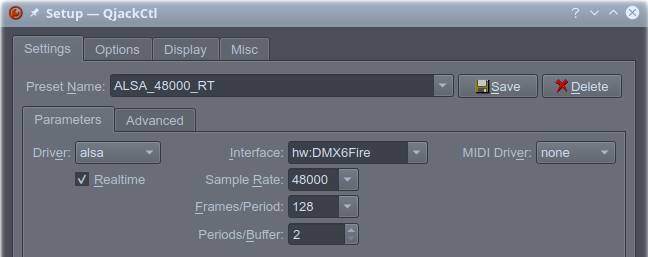
Thanks for the update. Could you try the following? Screenshots below are adapted from QjackCtl’s documentation at Sourceforge.
- Quit FarPlay.
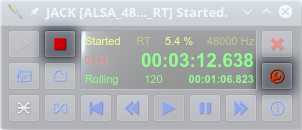
- Open QjackCtl. If the Stop button is red, click the Stop button. Click the Setup button (wrench).

- In Setup > Settings > Parameters, set the Driver to alsa, the Realtime option to checked ✓, the Interface to your Komplete Audio interface, the Sample Rate to 48000, the Frames/Period to 32 (you can try 16 for lower latency or 64 for higher stability later), and the Periods/Buffer to 2. Press OK.
- In the main QjackCtl window, press the green Play button (to the left of the stop button).
- Open FarPlay. In Preferences > General Options, choose the JACK listings for your Komplete Audio interface for Microphone and Headphones.
- Check whether local latency improved.
Thank you,
David Liao-
This reply was modified 6 months, 1 week ago by
David Liao.
-
This reply was modified 6 months, 1 week ago by
David Liao.
-
This reply was modified 6 months ago by
David Liao.
Dear José,
Could you try the following? These suggestions are adapted from feedback from Anton, our chief developer, who is familiar with Linux.
- In QjackCtl, press the stop button if it’s red 🟥.
- Stop using the Komplete Audio interface through Pipewire (for example, for applications that use system audio). It might be necessary to disable the Komplete Audio interface in the system-audio device manager.
- In FarPlay’s Preferences, select the Komplete Audio interface (not just “default”) in the ALSA devices list for the Microphone and Headphones. (Interested to see whether the Komplete Audio interface has now become available in the list of ALSA devices in the pull-down menu for Headphones).
Anton recommended using ALSA directly for lowest latency, choosing a device-specific listing in the ALSA devices lists (instead of “default”), and making sure real-time scheduling is enabled.
If you’d be interested in meeting to work on these steps, please email support@farplay.io.
Thank you,
David Liao-
This reply was modified 6 months ago by
David Liao.
Dear David,
I followed the steps and latency remains high.
While following the instructions on both of your posts, I had to get some help from AI (I’m kinda recent in Linux world); from this help, I deactivated and later reactivated JACK drivers(?). Latency remained.
Then I tested Audacity. I enabled “Audible audio monitoring” and I couldn’t detect any lag at all.
A few minutes ago I installed FarPlay in Win11 (I have dual boot in my laptop) and the local latency was always above 30ms.
My laptop is Lanovo IdeaPad Slim 5 14IRH10, maybe it helps.
Sincerely, I cannot say if the high local latency is a problem with the drivers of the laptop or not.
Dear José,
Thanks for your update.
To bring your local latency below 30 ms in Windows 11, please install your Komplete Audio interface’s ASIO drivers. Then, go to the version of our QuickStart guide customized for Windows PCs with audio interfaces using manufacturer-provided ASIO drivers. This version of our QuickStart guide will guide you to select the Komplete Audio interface from the ASIO devices lists for Microphones and Headphones and guide you to use your audio interface’s ASIO control panel to set a small ASIO buffer size (like 32).
If you have availability, I (support@farplay.io) would be interested to meet to look at your Linux settings together. Anton explained to me that on Linux, everything might need system/configuration-specific steps.
Thank you,
David Liao-
This reply was modified 6 months ago by
David Liao.
-
This reply was modified 6 months ago by
David Liao.
-
This reply was modified 6 months ago by
David Liao.
-
This reply was modified 6 months ago by
David Liao.
-
This reply was modified 6 months ago by
David Liao.
Dear José,
It was nice to meet you, and I’m glad we fixed the high latency on your Lenovo IdeaPad Slim 5 in Fedora and Windows.
In Fedora, we quit all audio apps. We opened FarPlay and, in Preferences > General Options, we set both the Microphone and Headphones to ALSA devices > Komplete Audio 2,0.
Then, we raised the Audio Buffer Size from 16 to 64, which brought the Local Latency down to ~8 ms and let you hear a clear copy of your guitar through your headphone (with the Monitor slider under You (José Fernando) dragged all the way to the right to 10 dB).
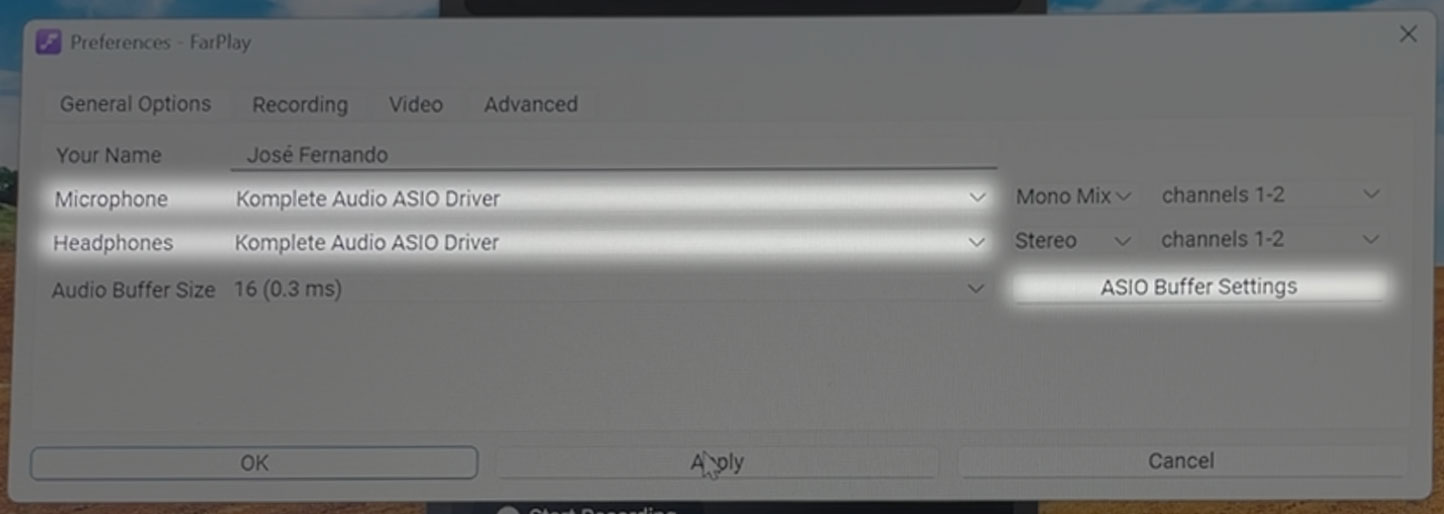
In Fedora on your PC, the buffer sizes of 16 and 32 have very high latencies. In Linux in general, try buffer sizes of 16, 32, and 64.In Windows, we installed the Komplete Audio 2’s ASIO drivers. In FarPlay’s Preferences > General Options, we set the Microphone and Headphones to Komplete Audio ASIO Driver, pressed the ASIO Buffer Settings button, and changed the Preferred ASIO Buffer Size from 512 samples to 32 samples. This brought your Local Latency down to about 3 ms, and you were able to hear a nice, clean copy of your guitar audio through FarPlay.
On Windows, getting the lowest latency from an audio interface typically requires installing the interface’s manufacturer-supplied ASIO drivers, selecting those drivers in FarPlay’s Preferences, and using the control panel for those drivers to choose a small ASIO buffer size — try 16, 32, and 64.Separately, we ran into an error message in Windows that said
swscale-6.dll“is either not designed to run on Windows or it contains an error” (translated from Portugese). We were able to open FarPlay normally after turning Windows Smart App Control off. To do so, go to Start > Settings > Privacy & security > Windows Security. Go to App & browser control > Smart App Control and click the Smart App Control settings link. On the Smart App Control page that appears, choose Off.Thank you,
David Liao-
This reply was modified 5 months, 3 weeks ago by
David Liao.
-
This reply was modified 5 months, 3 weeks ago by
David Liao.
-
This reply was modified 5 months, 3 weeks ago by
David Liao.
-
This reply was modified 6 months, 1 week ago by


- You must be logged in to reply to this topic.