Dear Chris,
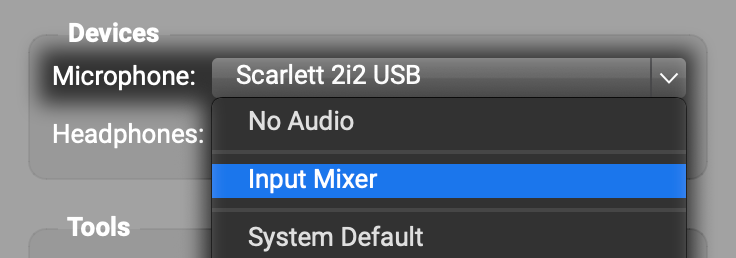
Thanks for your message. In the Devices subpanel, please set the Microphone to Input Mixer.

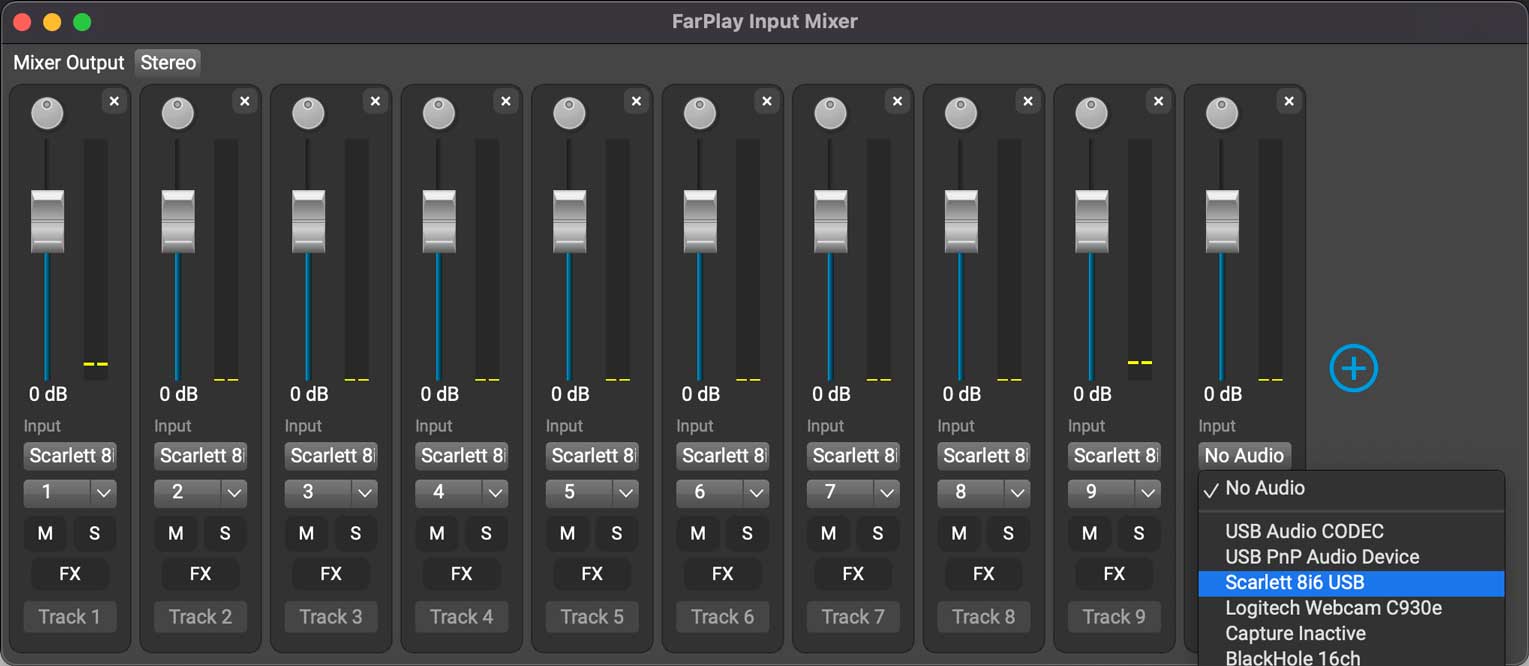
In the Input Mixer, click the circled plus to create a bunch of tracks, one for each input channel on your Octa Capture.
Set the audio device for each track to your Octa Capture. Set each track to a different input channel on your Octa Capture. The screenshot below shows what it looked like in a similar situation where I was setting up Input Mixer tracks for each of the input channels on my Scarlett 8i6.
Try speaking/playing and see whether any of the green level meters in the Input Mixer flicker. You can do this test in a session by yourself (even without connecting to your friend).
The steps above fix the following possible problem: If you had a microphone plugged into, say, input channel 3 on your Octa Capture, but FarPlay was using your Octa Capture’s channels 1 and 2 for input, FarPlay wouldn’t have received the microphone input.
To learn more about FarPlay’s Input Mixer, see our Input Mixer instructions.
Thank you,
David Liao
-
This reply was modified 3 months ago by
 David Liao.
-
This reply was modified 3 months ago by
David Liao.
-
This reply was modified 3 months ago by
David Liao.
-
This reply was modified 3 months ago by
David Liao.