Using UA Apollo interface Windows with Farplay
-
Hello,
I want to do video lessons with my new piano teacher through Farplay. He uses a Universal Audio Apollo audi interface on a Windows computer. This high class thing seems to be a bit complicated, did not work without fancy adjustments, if at all, with zoom. I would rather use Farplay, works like a charm with my equipment, but my Mac is way easier with audio, not needing al those different drivers.
What adjustments must be made with AU Console to get things working?
Greetings Volker



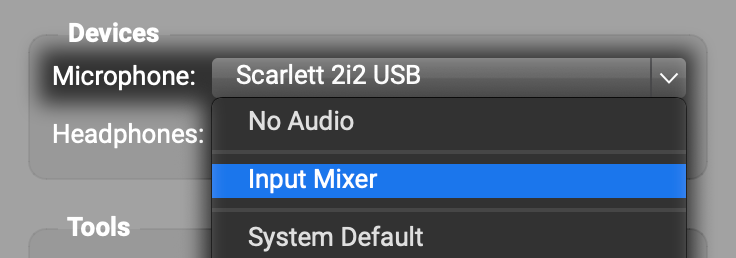
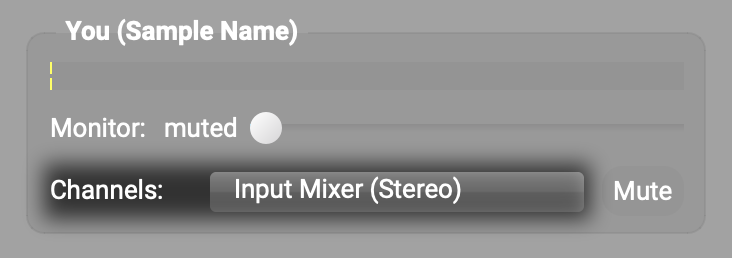
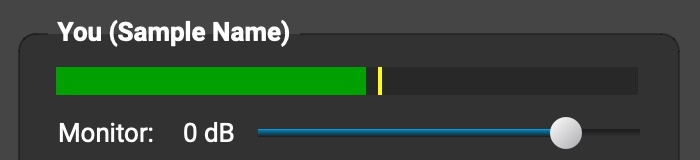
 to create as many input tracks as you’d like — each track in the Input Mixer can accept 1 (mono) or 2 (stereo) input channels from your UA Apollo. For each track, click the device menu (under “Input”) and select ASIO devices > Universal Audio USB. Use the pull-down menu under the device menu to choose the input channels you want to use. Here’s what the input-device and input-channel selections look like in a track when I use my Focusrite Scarlett interface.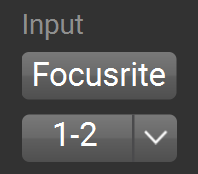

Viewing 1 replies (of 1 total)
- You must be logged in to reply to this topic.