Hi John,
Thanks for your great question. To let band members watch a video on your computer, do the following.
Share the audio from the mp4 file using a virtual audio cable like BlackHole for Mac or Virtual Audio Cable Lite for Windows and our Input Mixer (check out how another FarPlay user brought a backing track into FarPlay in this short video).
Bring the on-screen portion of the mp4 file into FarPlay by clicking the Choose your camera button  in FarPlay’s Video window and choosing Share desktop screen.
To get smooth video, go to Preferences > Video Preferences, raise the Max framerate for screensharing to 15 fps (or 30 fps for even smoother motion) and keep Your max resolution (width in pixels) low (the default of 640 is fine). If you have less than the recommended 35 Mbit/s of upload speed, lower the Max bandwidth for screensharing to 1 Mbps (or 500 kbps if others notice that audio and latency are affected when you use 1 Mbps).
FarPlay doesn’t have a built-in way to simultaneously show your webcam video and share your screen at the same time, but you can open a camera app if you’d like other participants to see your face while you show them a video through screen sharing.
Thank you,
David Liao


 in FarPlay’s Video window and choosing Share desktop screen.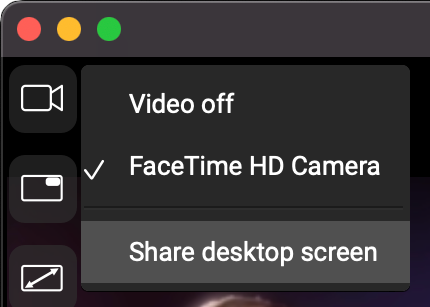
 > Video Preferences, raise the Max framerate for screensharing to 15 fps (or 30 fps for even smoother motion) and keep Your max resolution (width in pixels) low (the default of 640 is fine). If you have less than the recommended 35 Mbit/s of upload speed, lower the Max bandwidth for screensharing to 1 Mbps (or 500 kbps if others notice that audio and latency are affected when you use 1 Mbps).