Reply To: High latency in Fedora 43

Dear José,
It was nice to meet you, and I’m glad we fixed the high latency on your Lenovo IdeaPad Slim 5 in Fedora and Windows.
In Fedora, we quit all audio apps. We opened FarPlay and, in Preferences > General Options, we set both the Microphone and Headphones to ALSA devices > Komplete Audio 2,0.
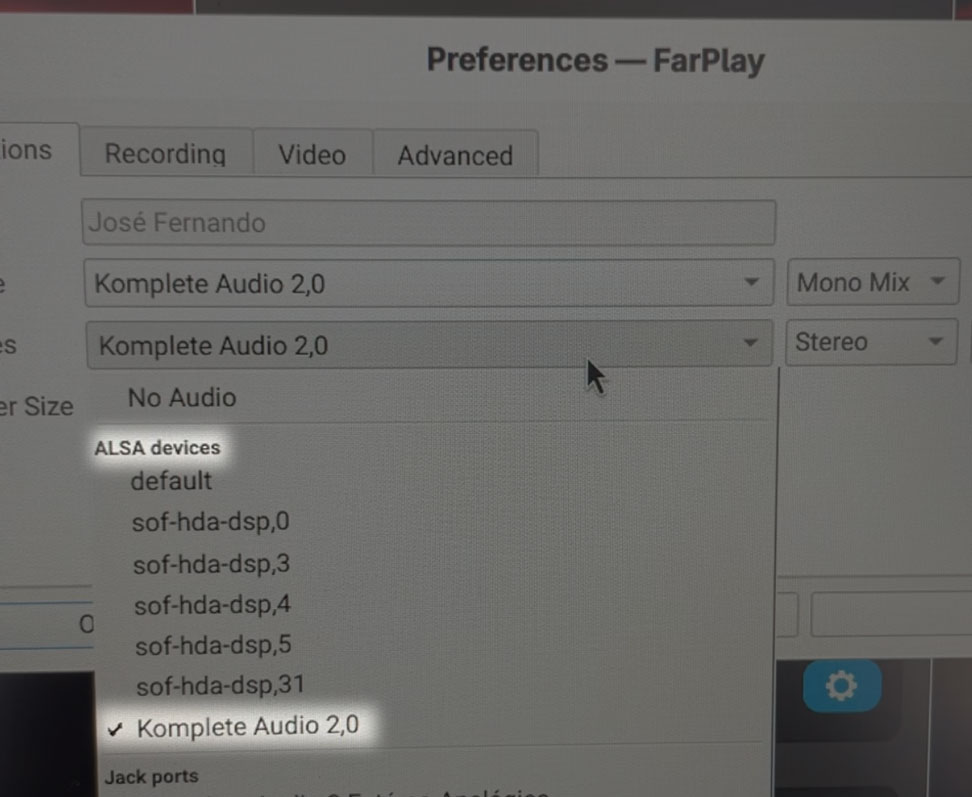
Then, we raised the Audio Buffer Size from 16 to 64, which brought the Local Latency down to ~8 ms and let you hear a clear copy of your guitar through your headphone (with the Monitor slider under You (José Fernando) dragged all the way to the right to 10 dB).
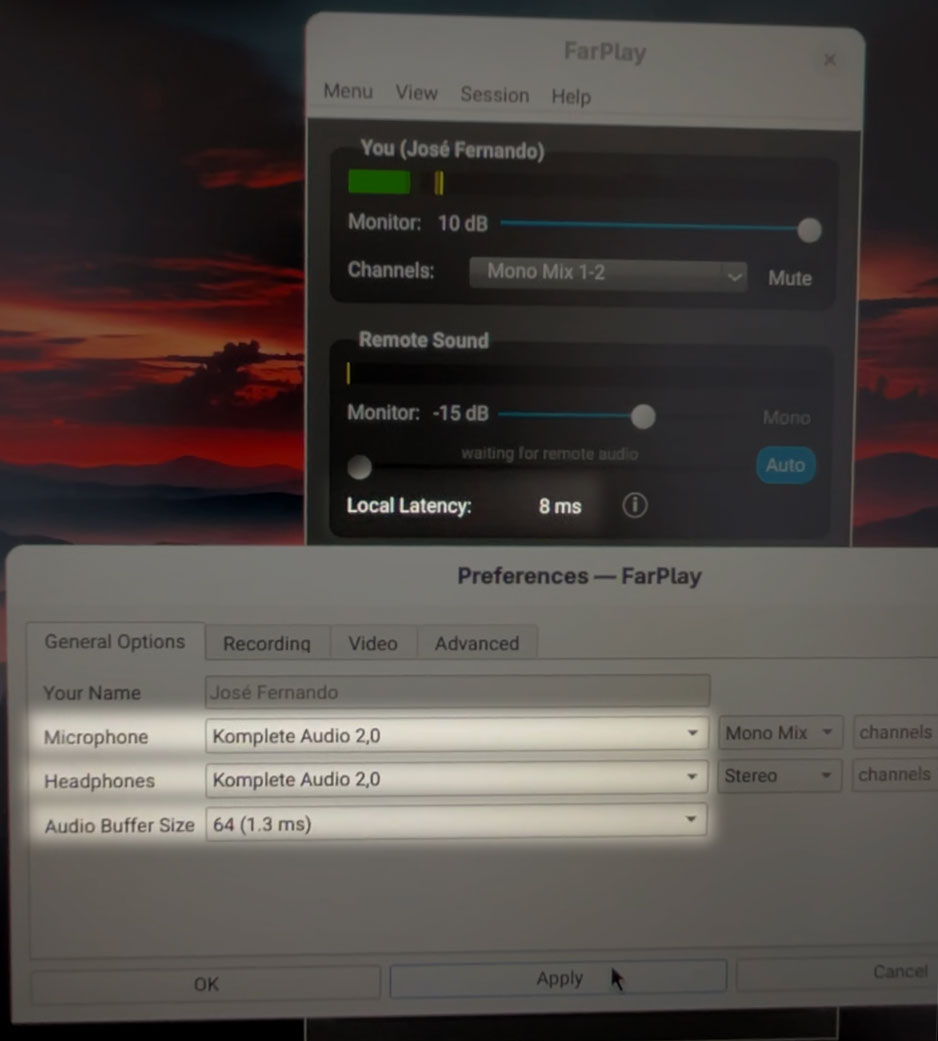
In Fedora on your PC, the buffer sizes of 16 and 32 have very high latencies. In Linux in general, try buffer sizes of 16, 32, and 64.
In Windows, we installed the Komplete Audio 2’s ASIO drivers. In FarPlay’s Preferences > General Options, we set the Microphone and Headphones to Komplete Audio ASIO Driver, pressed the ASIO Buffer Settings button, and changed the Preferred ASIO Buffer Size from 512 samples to 32 samples. This brought your Local Latency down to about 3 ms, and you were able to hear a nice, clean copy of your guitar audio through FarPlay.
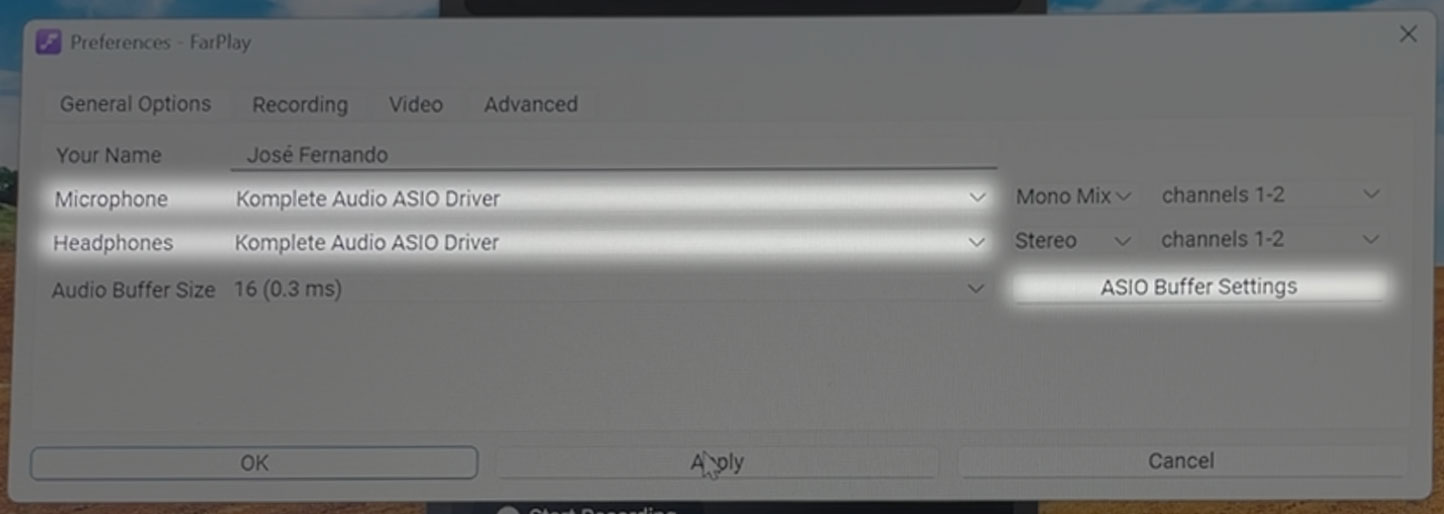
On Windows, getting the lowest latency from an audio interface typically requires installing the interface’s manufacturer-supplied ASIO drivers, selecting those drivers in FarPlay’s Preferences, and using the control panel for those drivers to choose a small ASIO buffer size — try 16, 32, and 64.
Separately, we ran into an error message in Windows that said swscale-6.dll “is either not designed to run on Windows or it contains an error” (translated from Portugese). We were able to open FarPlay normally after turning Windows Smart App Control off. To do so, go to Start > Settings > Privacy & security > Windows Security. Go to App & browser control > Smart App Control and click the Smart App Control settings link. On the Smart App Control page that appears, choose Off.
Thank you,
David Liao
-
This reply was modified 5 months ago by
 David Liao.
-
This reply was modified 5 months ago by
David Liao.
-
This reply was modified 5 months ago by
David Liao.
