Fixed: Screen sharing fails on Windows
-
Dear Windows users,
I wanted to share a fix that helped a user to get screen sharing working on their PC today. Initially, when they clicked the Choose your camera button
 and chose Share desktop screen, three dots appeared for maybe a second and then were replaced by their display name and “(video off)”. The expected Screen Sharing Active message failed to appear.
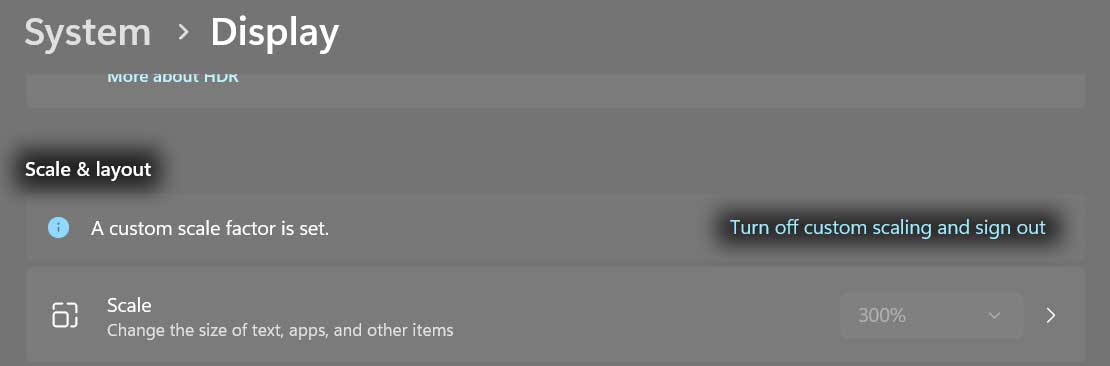
Screen sharing worked once we turned custom scaling off on their PC. To turn off custom scaling, go to Start > Settings > System > Display. Scroll down to the Scale & layout section. Click Turn off custom scaling and sign out. Then sign back into Windows.
If screen sharing still doesn’t work, check permissions in Windows and security software.
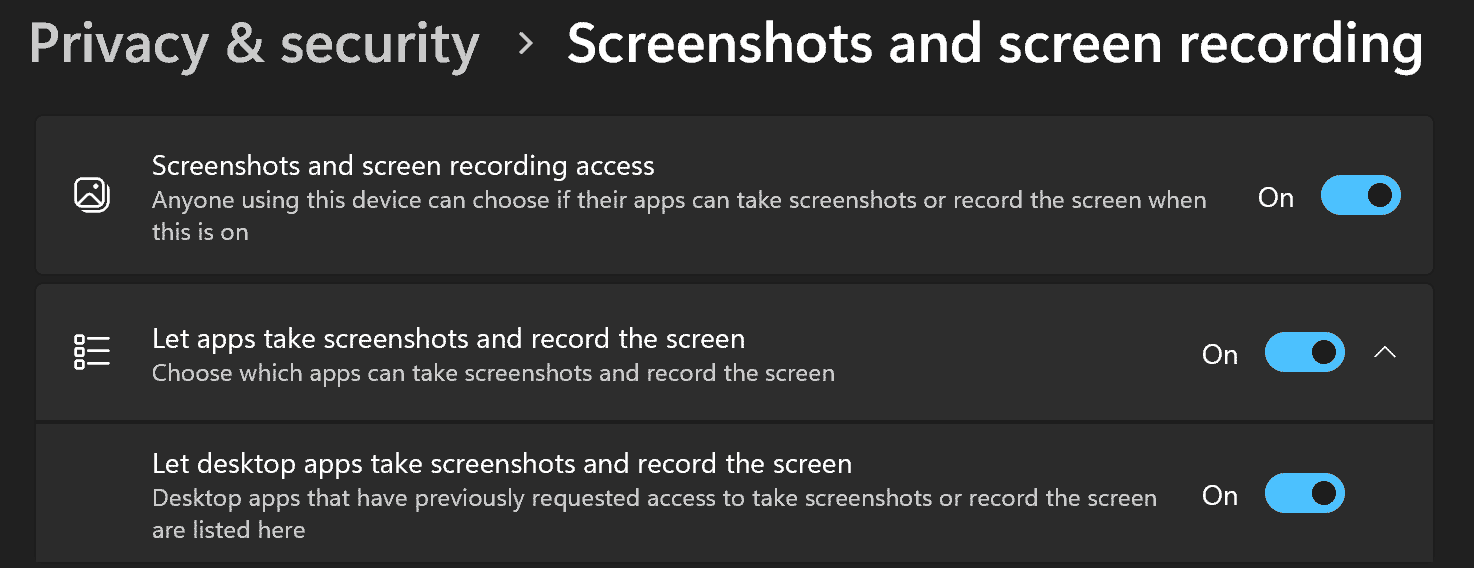
- Go to Start > Settings > Privacy & security. Scroll down to App permissions and click Screenshots and screen recording. Make sure the toggle switches are in the “On” position for “Screenshots and screen recording access”, “Let apps take screenshots and record the screen”, and “Let desktop apps take screenshots and record the screen”.
- If you use 3rd-party security software, try turning webcam/video protection off. For example, if you use Norton 360, try turning SafeCam off as suggested in this reddit thread.
Accordingly, I updated the “Can’t share screen or screen sharing stops working” section in our Troubleshooting Guide. When using the guide, use the Change computer and Change audio buttons, as needed, to get tips customized for your computer and devices.
Thank you,
David Liao - Go to Start > Settings > Privacy & security. Scroll down to App permissions and click Screenshots and screen recording. Make sure the toggle switches are in the “On” position for “Screenshots and screen recording access”, “Let apps take screenshots and record the screen”, and “Let desktop apps take screenshots and record the screen”.

 and chose Share desktop screen, three dots appeared for maybe a second and then were replaced by their display name and “(video off)”. The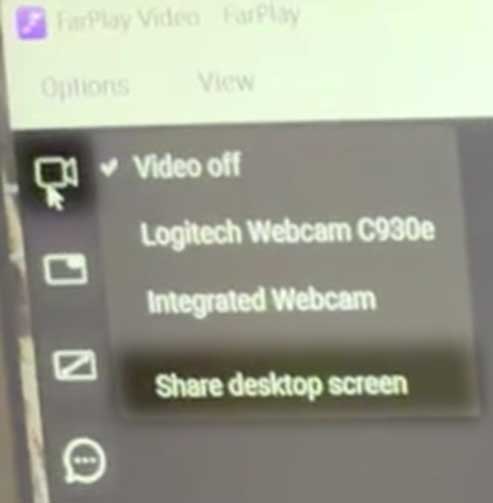
- You must be logged in to reply to this topic.