Behringer U-Phoria UM2 & Xenyx ASIO drivers
-
Dear Windows users,
If you use a Behringer U-Phoria UM2, Xenyx mixer, or another audio interface for which Behringer stopped providing custom ASIO drivers, minimize your latency as follows.
- Plug your Behringer interface into a USB port.
- Download and install Behringer’s old, unsupported drivers, here (be sure to reboot your PC).
- Follow the steps in the version of our QuickStart customized for Windows PCs with external audio interfaces.
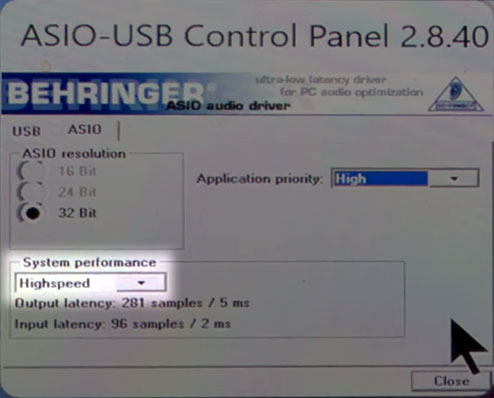
- When you open the ASIO control panel for these drivers, click the pull-down under System Performance and choose Highspeed (smallest buffer, lowest latency) or Rapid (small buffer, still low latency).

The System Performance pull-down in the Behringer’s control panel corresponds to the Buffer Size pull-down in other audio interface’s ASIO control panels.
- When you open the ASIO control panel for these drivers, click the pull-down under System Performance and choose Highspeed (smallest buffer, lowest latency) or Rapid (small buffer, still low latency).
- If your Behringer audio interface doesn’t show up under ASIO devices in the Microphone and Headphones pull-downs in FarPlay’s Preferences > General Options, plug your audio interface into a different USB port, install the driver again, and restart your computer.
- If your Behringer device still doesn’t show up under ASIO devices, this driver doesn’t work with your device or computer. Simply select the Windows audio listings for
your Behringer device in FarPlay’s Microphone and Headphones pull-downs instead.
Thank you,
David Liao


- You must be logged in to reply to this topic.