Hi Christopher,
Thanks for your questions! You don’t need a different iRig. If your iRig connects by USB, you can plug your headphones into your Mac’s headphone jack. If, instead, your iRig itself plugs into your Mac’s headphones jack, plug your headphones into the iRig.
To get started, follow Step 2 of the QuickStart to install FarPlay. You can leave out the head unit.
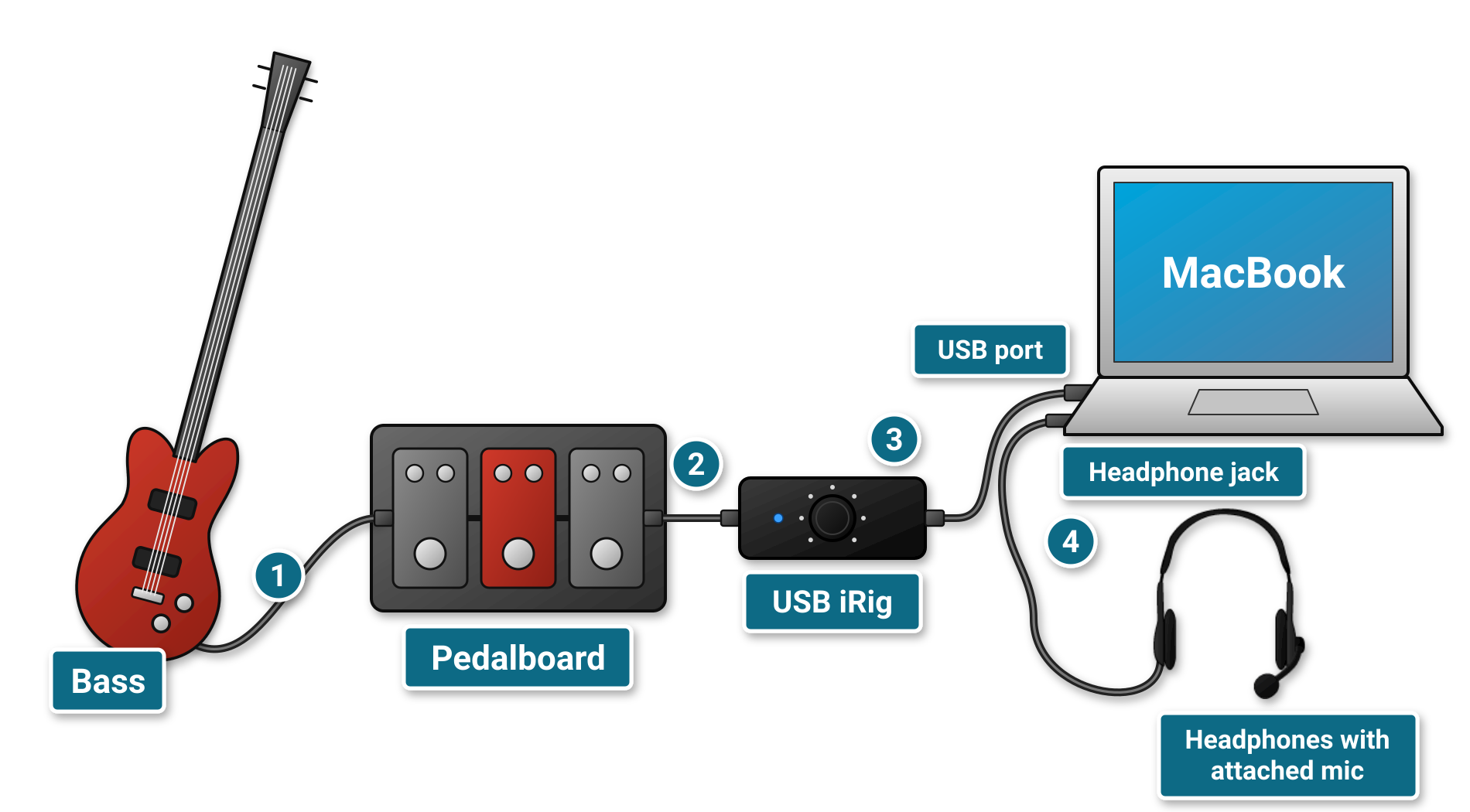
If your iRig connects by USB (example: iRig USB):

- Plug your bass into your pedalboard.
- Plug your pedalboard into your iRig.
- Connect the iRig to a USB port on your Mac.
- Plug your headphones into your Mac’s headphone jack.
- In FarPlay, click New Session, enter your name, and press OK. Click Enter Session, and click OK to allow FarPlay to access your microphone.
- Under Devices, set Headphones to External Headphones.
- Click the Microphone pull-down menu and select Input Mixer (2nd item).
- In the leftmost track of the mixer, use the Input pull-down menu to select your iRig. This track gets latency priority.
- For your voice, click the circled plus icon to add a track, and set its Input to External Microphone (the mic on your headphones).
This video shows the Input Mixer in use.
If your iRig plugs into your Mac’s headphone jack (example: iRig 2):
- Plug your bass into your pedalboard, and plug your pedalboard into your iRig.
- Plug the iRig into your Mac’s headphone jack.
- Plug your headphones into the iRig’s headphone jack. The mic on your headphones won’t be connected this way.
- In FarPlay, click New Session, enter your name, and press OK. Click Enter Session, and click OK to allow FarPlay to access your microphone.
- Under Devices, set Microphone to External Microphone and Headphones to External Headphones.
- If you also want to talk, select Input Mixer in the Microphone pull-down menu, set the leftmost track to External Microphone, and add a track for your Mac’s built-in mic. Use that track for talking only, because the built-in mic on Macs from 2016 and after adds around 30 ms of latency.
With either setup:
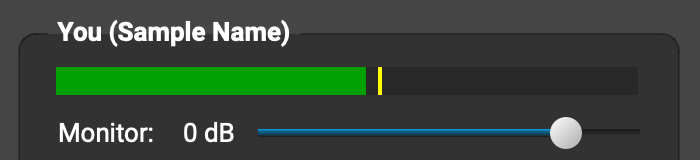
- Play your bass and check that the level meter under You (…) moves.
- Adjust the gain control on your iRig so the meter doesn’t reach red.
- To hear your bass, drag the Monitor slider under the meter to the right.
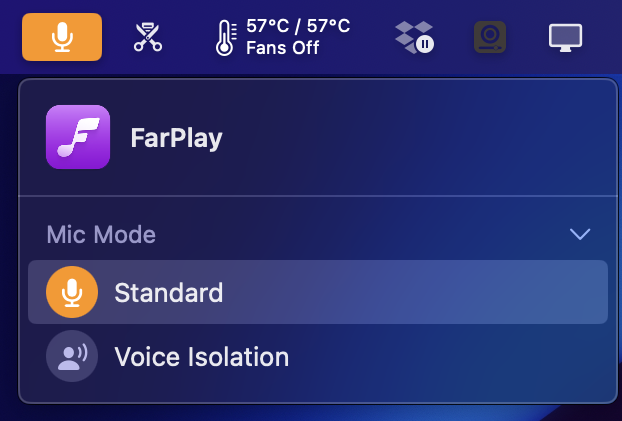
- If your bass cuts out while speech sounds clear, set your Mac’s Mic Mode to Standard.
To play in sync as a band, make sure everyone:
How far apart you are also matters. Under good network conditions, FarPlay can produce latencies below 40 ms at 3000 miles and well below 20 ms within 1000 miles. This post shows what’s playable at different distances.
We also offer free trial subscriptions, so you can try this with your band at no cost.
Thank you,
David Liao
-
This reply was modified 1 day, 17 hours ago by
 David Liao.
-
This reply was modified 1 day, 17 hours ago by
David Liao.
-
This reply was modified 1 day, 16 hours ago by
David Liao.
-
This reply was modified 1 day, 16 hours ago by
David Liao.
-
This reply was modified 1 day, 15 hours ago by
David Liao.