Dear Enrique,
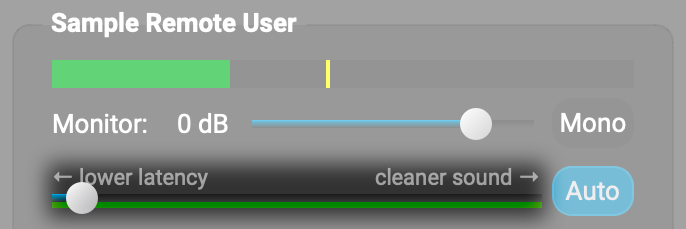
Thanks for trying FarPlay. To fix audio dropouts and crackling/clicking, please drag the latency slider in small steps to the right. The latency slider lets you choose a balance between lower delay (drag slider left) and cleaner audio (drag slider right) (see our latency-slider video tutorial). If the latency slider is too far to the left, you’ll hear noise like dropouts and crackling.

If dragging the latency slider doesn’t provide clean audio (or you get clean audio, but only by making the latency too high), please try the following (in whatever order is convenient — you might not need both suggestions):
-
Make sure VPN is off on each computer. VPN reroutes audio and video through VPN servers, which introduces instability and delay to the connection.
-
At your end and the students’, use an Ethernet cable to connect the computer to the router that receives the fiber or cable internet signal where the internet signal first comes into the home. If a computer doesn’t have an Ethernet port, use an Ethernet adapter (for USB-C or for USB-A). Turn Wi-Fi off on both computers. Wi-Fi typically provides less stability and more latency than Ethernet, so switching to Ethernet fixes audio interruptions and crackling and reduces delay so musicians can play together more in sync.
Using Ethernet and adjusting the latency slider, as suggested above, are described in our QuickStart guide, which we highly recommend each musician use to check their setup before connecting for the first time.
For more suggestions, check out our Troubleshooting Guide. Use the “Change computer” and “Change audio” buttons, as needed to customize the suggestions for your setup or your student’s setup, and browse the “Audio is distorted or stops working” and “Latency is too high” sections (fixing high latency often fixes audio distortion).
Thank you,
David Liao
-
This reply was modified 4 months, 3 weeks ago by
 David Liao.
-
This reply was modified 4 months, 3 weeks ago by
David Liao.
-
This reply was modified 4 months, 3 weeks ago by
David Liao.
-
This reply was modified 4 months, 3 weeks ago by
David Liao.
-
This reply was modified 4 months, 3 weeks ago by
David Liao.
Dear David, thank you for heads up, latency slider worked, so, I could sync with my student. Going to subscribe to Teacher subscription. Thank you again!
Dear Enrique,
You’re welcome, and thanks for sharing this great news 😃!
Enjoy,
David Liao