Create and edit your Player Profile
Creating a Meet profile lets other musicians connect with you. If you’re a Standard or Standard+ subscriber, you can create a Player Profile. If you’re a For Teachers subscriber, you can create both a Player Profile and a Teacher Profile.- If you haven’t created a Meet profile, click the Get Started button on Meet’s welcome screen.
 If you’re a For Teachers subscriber, you’ll be asked which profile (Player or Teacher) you’d like to set up first — we chose the Player Profile in the example steps below.
 - Type in your name. To pick a photo for your profile (recommended), click Choose file. Type a description in the Tell us a little about yourself box. We suggest introducing your musical background and examples of music you’d like to make with others on FarPlay Meet. For example, check out our own Dan Tepfer’s bio:
Co-founder of FarPlay and lifelong pianist / composer. I’ve toured with artists from Lee Konitz to Renée Fleming. Down to play some jazz standards or sight-read some classical sonatas. www.dantepfer.com
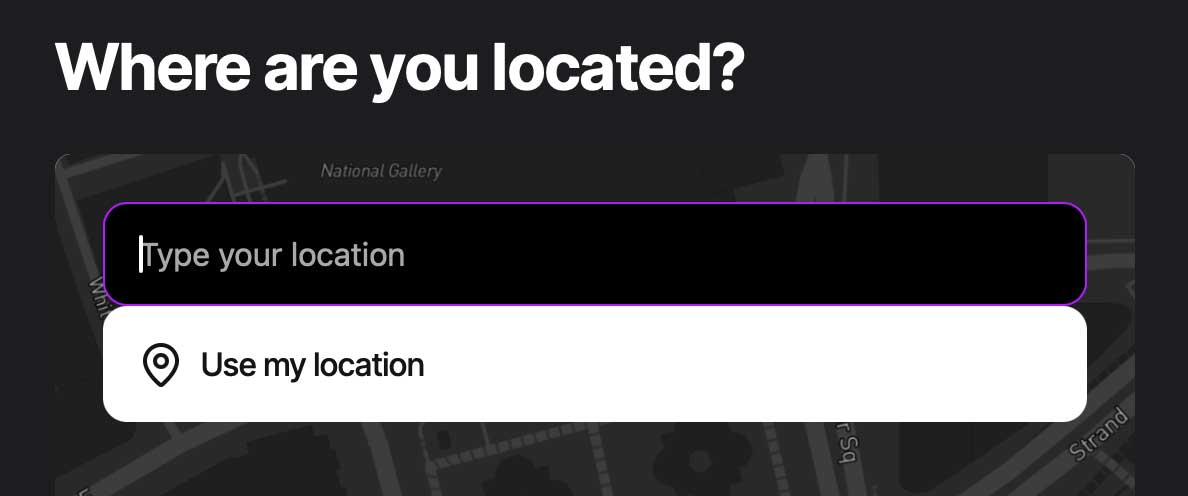
Yes, you can include clickable links! Then press Next. - Type your location into the location box. Click your location from the list of matches in the drop-down menu below. Or, click Use my location in the drop-down menu to automatically enter your location. Then, press Next.
- Click Choose your instrument and select an instrument you play. You can add more instruments later. Press Next.
-
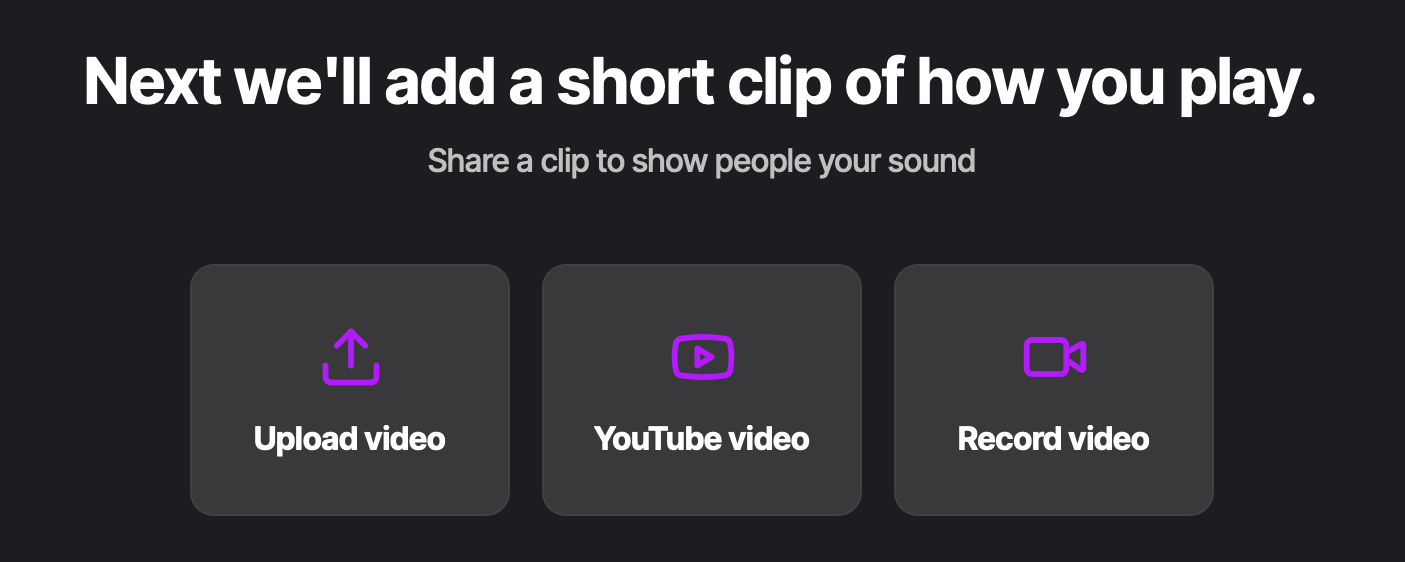
Now let’s add a video to your profile showing how you play. Click Upload video to upload a video from your computer, click YouTube video to share a link to a YouTube video, or click Record video to record a video in your browser.
-
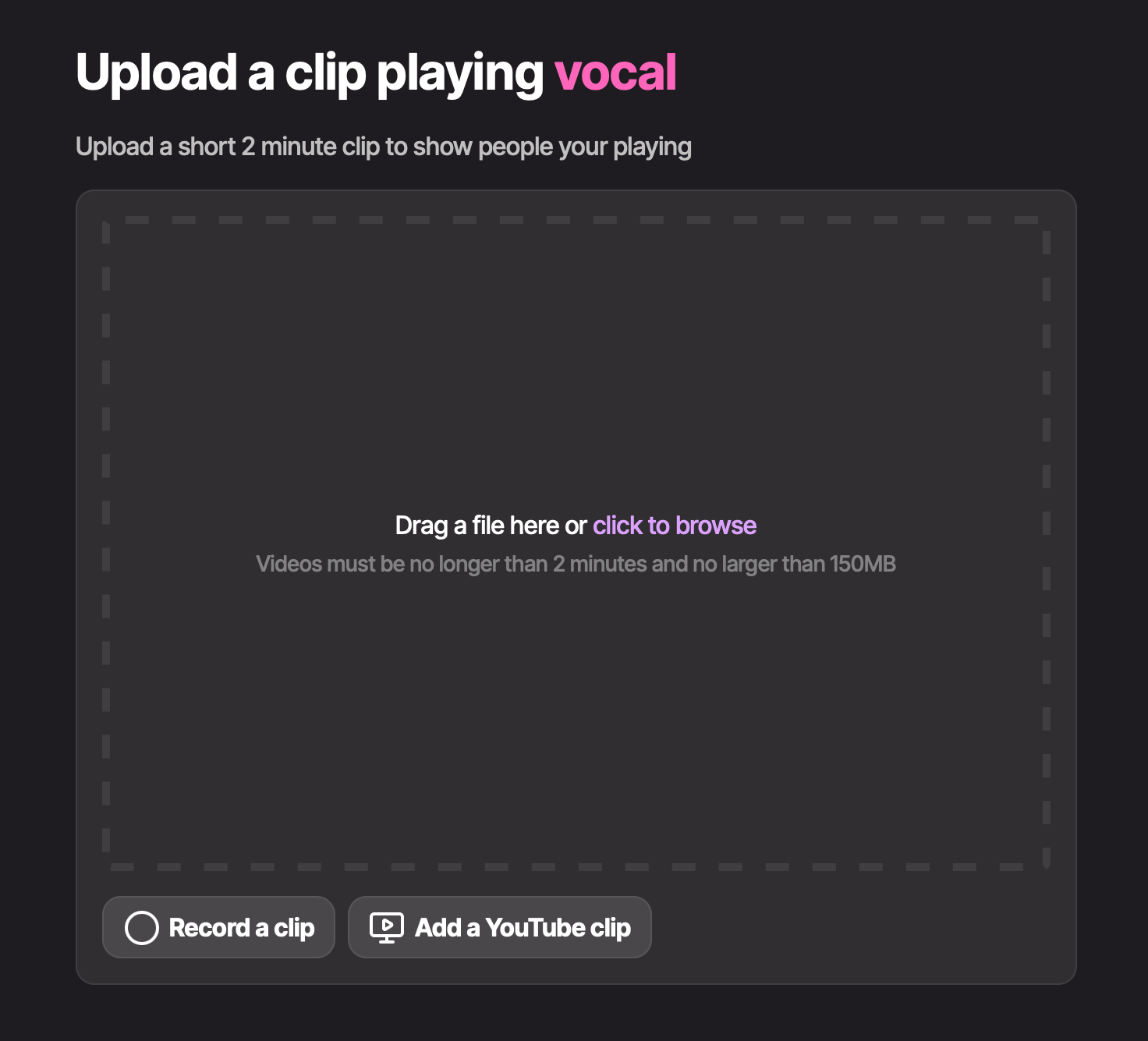
If you clicked Upload video, drag a video file from your computer into the Drag a file here rectangle, or click click to browse to choose a video you’d like to upload.
-
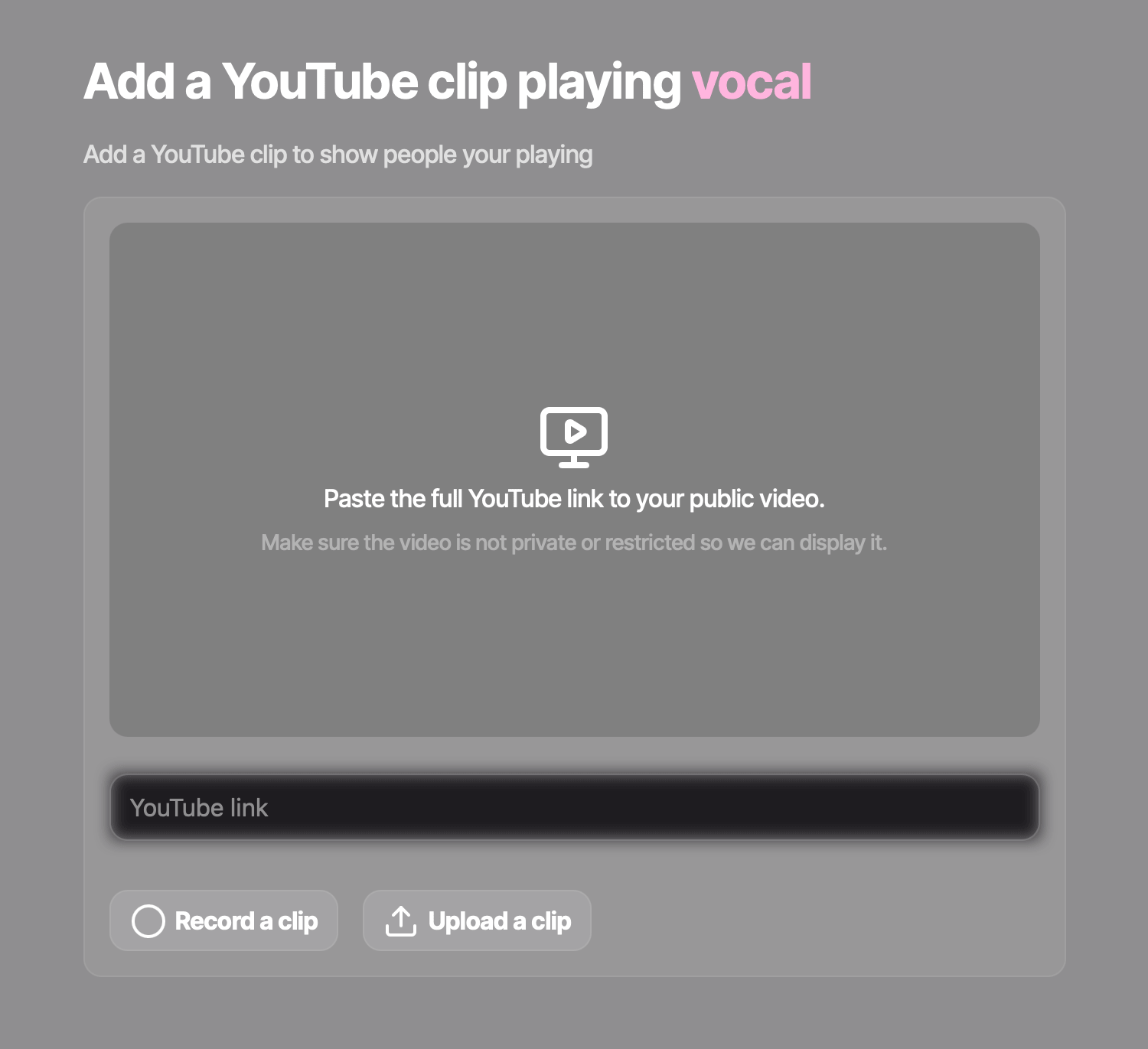
If you clicked YouTube video, paste your video’s YouTube link into the YouTube link box. Once your video preview loads, click Next.
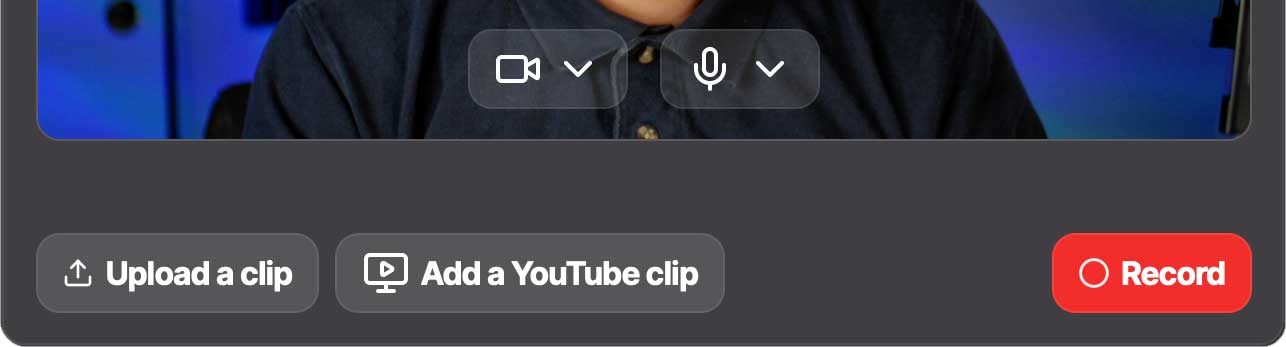
- If you clicked Record video, click Allow when your browser asks whether to allow meet.farplay.io to access your camera and microphone. Click Record and play your instrument. Your recording can be between 15 seconds and 2 minutes long. We recommend focusing on your playing rather than talking — but the stage is yours!
Once you’ve recorded a clip you’d like to use, click Next.
- Click the Choose a genre pull-down menu. Select the musical genre that most closely matches what you’re playing in your video. You can choose more than one if needed. Then press Next.
- You can add more videos by clicking Add a video or Add instrument. You can also add more videos later. To finish creating your profile, simply click Skip. You’re done! Other musicians can now find and connect with you on Meet.
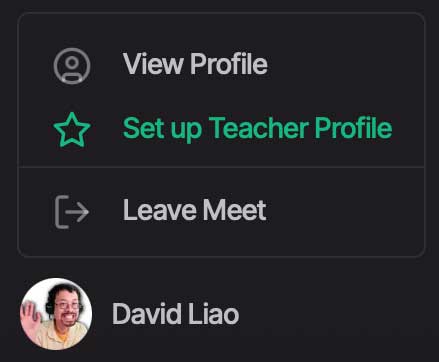
- If you later need to make any changes to your profile, click your name at the bottom of the sidebar at the left and then click View Profile.
Then, click Edit profile. Or, to hide your profile, click Mute profile.
 If you’re a For Teachers subscriber, you’ll be asked which profile (Player or Teacher) you’d like to set up first — we chose the Player Profile in the example steps below.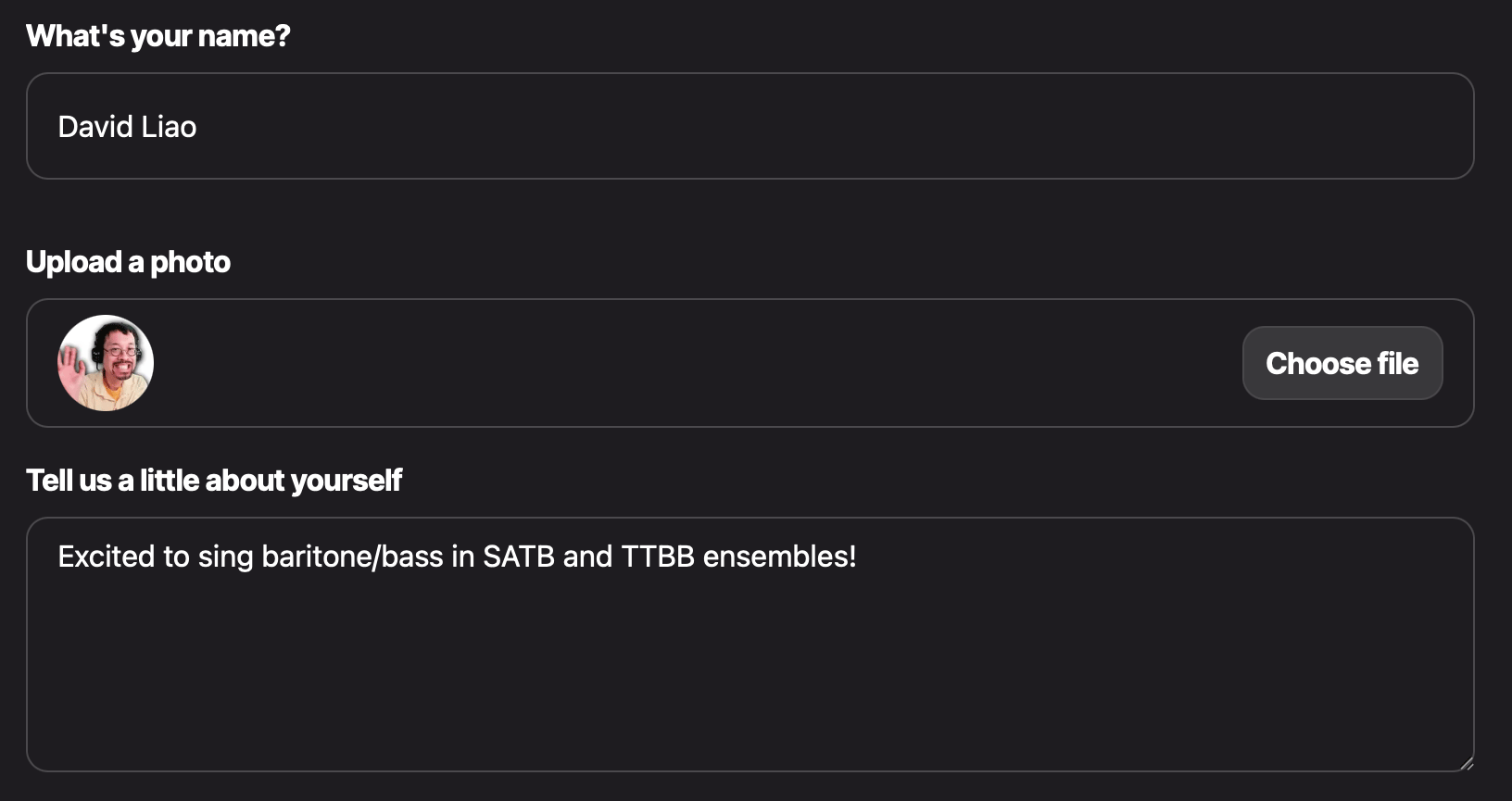
 Once you’ve recorded a clip you’d like to use, click Next.
 Then, click Edit profile. Or, to hide your profile, click Mute profile.
Browse and connect with musicians
Browse the Meet feed to find musicians to connect with. You can review connection requests to see which you’d like to accept.- To visit the Meet feed, click Meet in the sidebar the left.
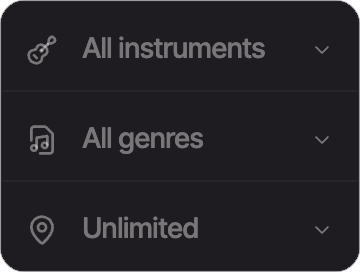
- Narrow your results using the instrument, genre, and distance filters at the right.
Connecting with musicians closer to you lowers latency, but FarPlay is so efficient that you can still comfortably play some styles of music even thousands of miles apart!
- To look at a musician’s profile, click their name. If you’d like to connect with a musician, click their Connect button. FarPlay Meet will email them to let you know you’ve requested to connect with them.
- To review pending connection requests from other musicians, click Requests in the sidebar at the left.
Press Connect back to connect with someone who has requested to connect with you. To ignore or block a request from a profile, click the three-dots (…) button for that profile.
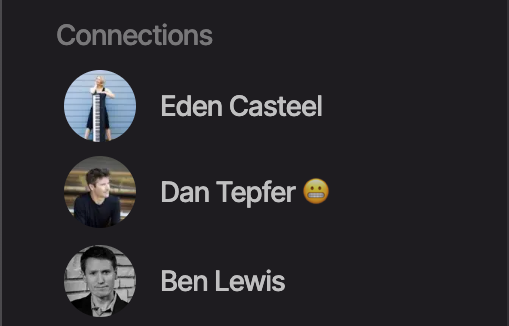
- To remove a musician from your connections, click their name under Online now or Connections in the sidebar at the left, click their double-check button , and then click Remove connection.

 Connecting with musicians closer to you lowers latency, but FarPlay is so efficient that you can still comfortably play some styles of music
 Press Connect back to connect with someone who has requested to connect with you. To ignore or block a request from a profile, click the three-dots (…) button for that profile.
 , and then click Remove connection.
Chat with a connection
Planning sessions with your connections is easy with Meet’s built-in chat.- In the sidebar at the left, click the name of the person you’d like to chat with under Online now or Connections.
- Click the chat icon near the top of their profile.
- Chat away!
 near the top of their profile.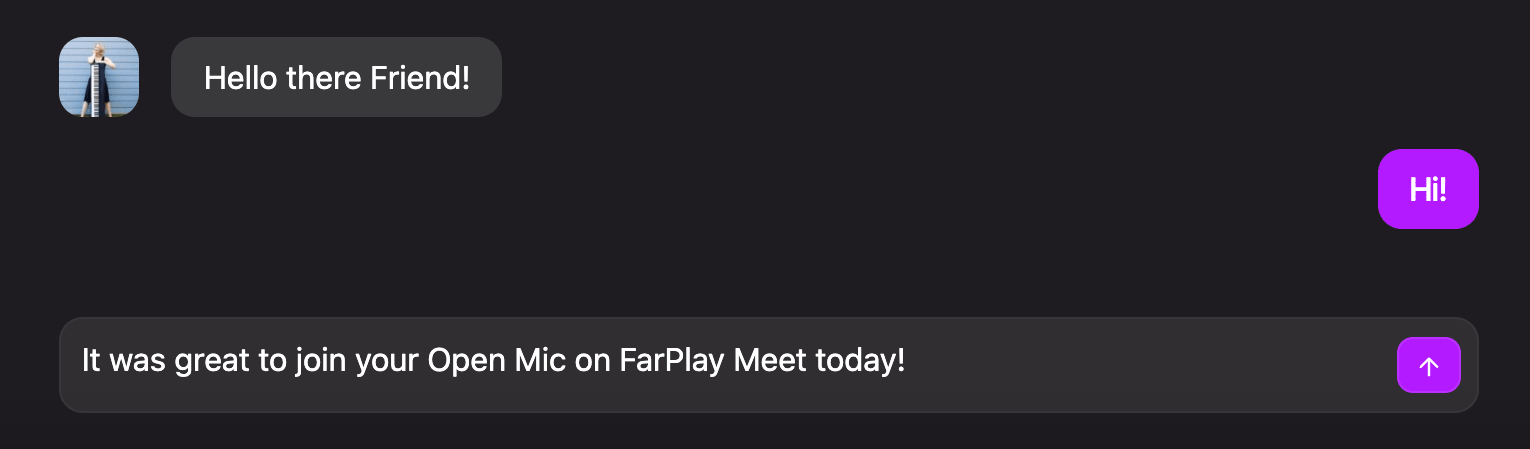
Browse and connect with teachers
Looking for lessons from teachers on FarPlay? Check out the feed of Teacher Profiles.- Click Learn in the sidebar at the left.
- Narrow your results using the instrument, genre, and distance filters at the right.
- To look at a teacher’s profile, click their name. If you’d like to communicate with a teacher, click their chat icon . The teacher will be automatically added to the list of connections in the sidebar at the left.
- You can remove a connection with a teacher when viewing their profile. Simply click their double-check button and then click Remove connection.

Create and manage your Teacher Profile
If you have a For Teachers subscription, you can create a Teacher Profile, which is a great way to let prospective students know you’re available to teach lessons on FarPlay.- If you haven’t created your Teacher Profile, click your name at the bottom of the sidebar at the left and click Set up Teacher Profile. Then, follow the same steps you used to create your Player Profile.
- If you previously created your Teacher Profile and would like to edit it, click the Teaching tab, click your name at the bottom of the sidebar at the left, and click View Profile.
- To browse musicians who’ve connected with your Teacher Profile, click the Teaching tab (if it’s not already highlighted) and look at the lists under Online now and Connections in the sidebar at the left.
- Click on a connection’s name to open their profile.
- When viewing a connection’s profile, click their chat icon to chat with them.
- You can remove a connection when viewing a profile. To do so, click their double-check button and then click Remove connection.

Find and create Open Sessions
An Open Session is a FarPlay session that’s visible to everyone on Meet. You can schedule an Open Session. Or, you can post an impromptu session from the Meet website or the FarPlay app.- In the sidebar at the left, click Open Sessions.
- To narrow down your search, use the genre and distance filters at the right. Distance is measured between you and the session host.
- To join a live Open Session, click the session’s Join in FarPlay button.
- To import a calendar event for an upcoming Open Session into a calendar app (we support Apple, Google, Outlook, Office 365, and Yahoo), click the Open Session’s calendar button . If you’d like a reminder email 15 minutes before a scheduled Open Session, click the session’s Set reminder button.
- To create your own Open Session, click New Session.
Type in the name, styles, and description for your session. If you’ve created a Persistent Room, you can use the pull-down menu labeled Optional: use your Persistent Room to use your Persistent Room for your Open Session.
- If you’re ready to start your Open Session right away, click Start session now.
- To start your session later, click Schedule, put in the desired date, time, and time zone, and then click Schedule again.
- Ten minutes before the time you scheduled for an Open Session, the session’s Start Session button will become available. Click this button to start the session and make the session visible on Meet as a live session.
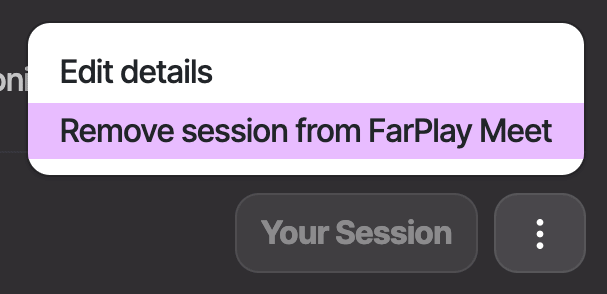
- A listing for an Open Session will be automatically removed when the session ends. To remove an Open Session listing before the session ends, click the Open Session’s three-dots (⋮) button and choose Remove session from FarPlay Meet.
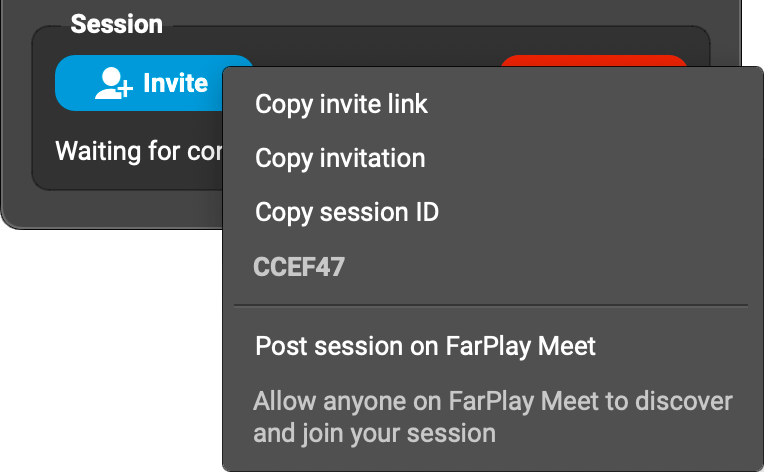
- You can also use the FarPlay app to post or remove an Open Session listing for a live session. Simply click the Invite button in the Session subpanel and then click Post session on FarPlay Meet or Remove session from FarPlay Meet.

 . If you’d like a reminder email 15 minutes before a scheduled Open Session, click the session’s Set reminder button.
 Type in the name, styles, and description for your session. If you’ve created a