Hi Hide,
Thanks for your questions. Yes, FarPlay handles audio routed from other apps smoothly. “Stopping and going” in a DAW works great. You can record live from FarPlay into Pro Tools using FarPlay’s Broadcast Output feature, available with Standard+ and For Teachers subscriptions. Depending on performance style, the student’s distance from you, and the student’s audio setup, the latency might be low enough that you won’t even need to re-align recorded phrases.
For most users, I’d recommend routing audio using BlackHole and FarPlay’s Input Mixer, which made it easy for the music teacher in this video tutorial to bring a backing track into FarPlay. However, your RME Fireface comes with excellent built-in routing, so I recommend that your studio route audio through your Fireface (no need to install Loopback or BlackHole):
- Set up routing in TotalMix:
- In the Hardware Outputs row (bottom), click to highlight the Phones track. In the Hardware Inputs row (top), drag all faders all the way down (-∞). In the Software Playback row (middle), drag all faders all the way down (-∞), except keep the AN 5/6 fader at 0 (unity). You’ve just set up the routing that FarPlay will use to send audio to your headphones.
- In the Hardware Outputs row, click to highlight the AN 7/8 track. Click the Loopback button (should now be orange). In the Hardware Inputs row, drag all faders all the way down (-∞). In the Software Playback row, drag all faders all the way down (-∞), except keep the AN 7/8 fader at 0 (unity). You’ve set up the routing that Pro Tools will use to send backing audio and recorded vocals to FarPlay.
- In the Hardware Outputs row, click to highlight the AN 3/4 track. Click the Loopback button (should now be orange). In the Hardware Inputs row, drag all faders all the way down (-∞). In the Software Playback row, drag all faders all the way down (-∞), except keep the AN 3/4 fader at 0 (unity). You’ve now set up the routing that FarPlay will use to send audio to Pro Tools.
- Set up Pro Tools:
- Go to Setup > Playback Engine…. Select your Fireface as your Playback Engine. Set the HW Buffer Size to 16 Samples (32 or 64 if you use a lot of plugins in Pro Tools or have a slow Mac). Press OK.
- Find the audio track into which you’d like to record the vocalist. Click the input selector (first selector under I/O), highlight interface, and choose channels 3-4.
- For both the track that will have the vocalist’s recorded audio and the track with the backing music, click the output selector (second selector under I/O), highlight interface, and choose channels 7-8.
-
Set up FarPlay:
- Check that FarPlay is working with a basic setup using our QuickStart guide.
- Go to Preferences
 > General Options. Set the Headphones to your Fireface. Set the headphones channel layout to Stereo and the headphones channels to channels 5-6. Press OK.
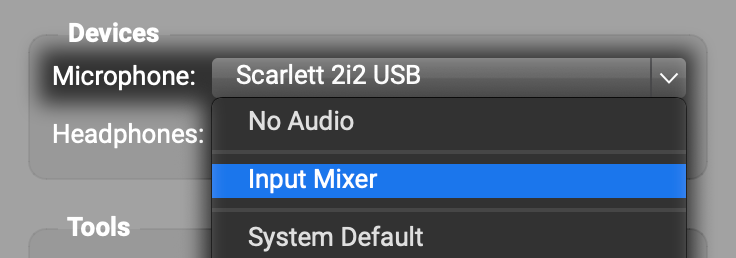
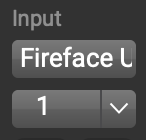
- In a FarPlay session (just by yourself is fine), find the Devices subpanel and set the Microphone to the Input Mixer. Change the first track’s input device from No Audio to your Fireface, and use the channel selector underneath to choose channel 1 (assuming your talkback mic is plugged into input channel 1 on your Fireface). Click the circled plus to create a new track. In the new track, change the input device from No Audio to your Fireface, and use the channel selector underneath to choose channels 7-8.
- Click Session > Broadcast Output. Set the Output Device to your Fireface. Set the Channel Layout to Stereo Mix (2 channels), and set the Output Device channels to channels 3-4. Set the Delay in ms to 0 ms (higher values like 500 ms are recommended when sending a pristine copy of FarPlay output to a livestream on YouTube, etc.). Press Start and then Close. When you leave a session, Broadcast Output stays off until you go to Session > Broadcast Output and press Start again.
If you’d be interested to meet to go through these settings together, please email us at support@farplay.io for scheduling.
Thank you,
David Liao
-
This reply was modified 5 months ago by
 David Liao.
-
This reply was modified 5 months ago by
David Liao.
-
This reply was modified 5 months ago by
David Liao.
-
This reply was modified 5 months ago by
David Liao.
-
This reply was modified 5 months ago by
David Liao.


 > General Options. Set the Headphones to your Fireface. Set the headphones channel layout to Stereo and the headphones channels to channels 5-6.
  Press OK.
 Change the first track’s input device from No Audio to your Fireface, and use the channel selector underneath to choose channel 1 (assuming your talkback mic is plugged into input channel 1 on your Fireface).
  Click the circled plus
  to create a new track. In the new track, change the input device from No Audio to your Fireface, and use the channel selector underneath to choose channels 7-8.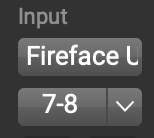
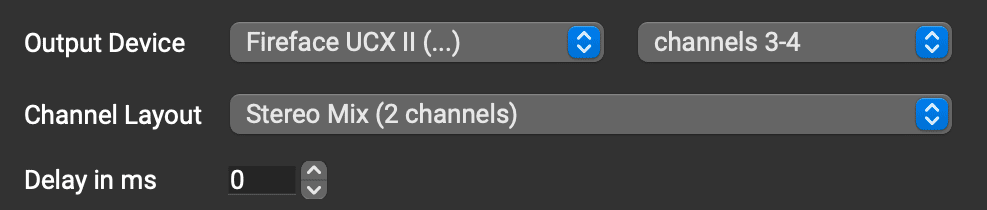 Press Start and then Close. When you leave a session, Broadcast Output stays off until you go to Session > Broadcast Output and press Start again.